How to Translate an SRT File (Without Breaking the Timing)
Translate SRT or VTT subtitles and keep every timestamp intact: how the file works, what usually breaks, readable line lengths, and a faster way.
On this page
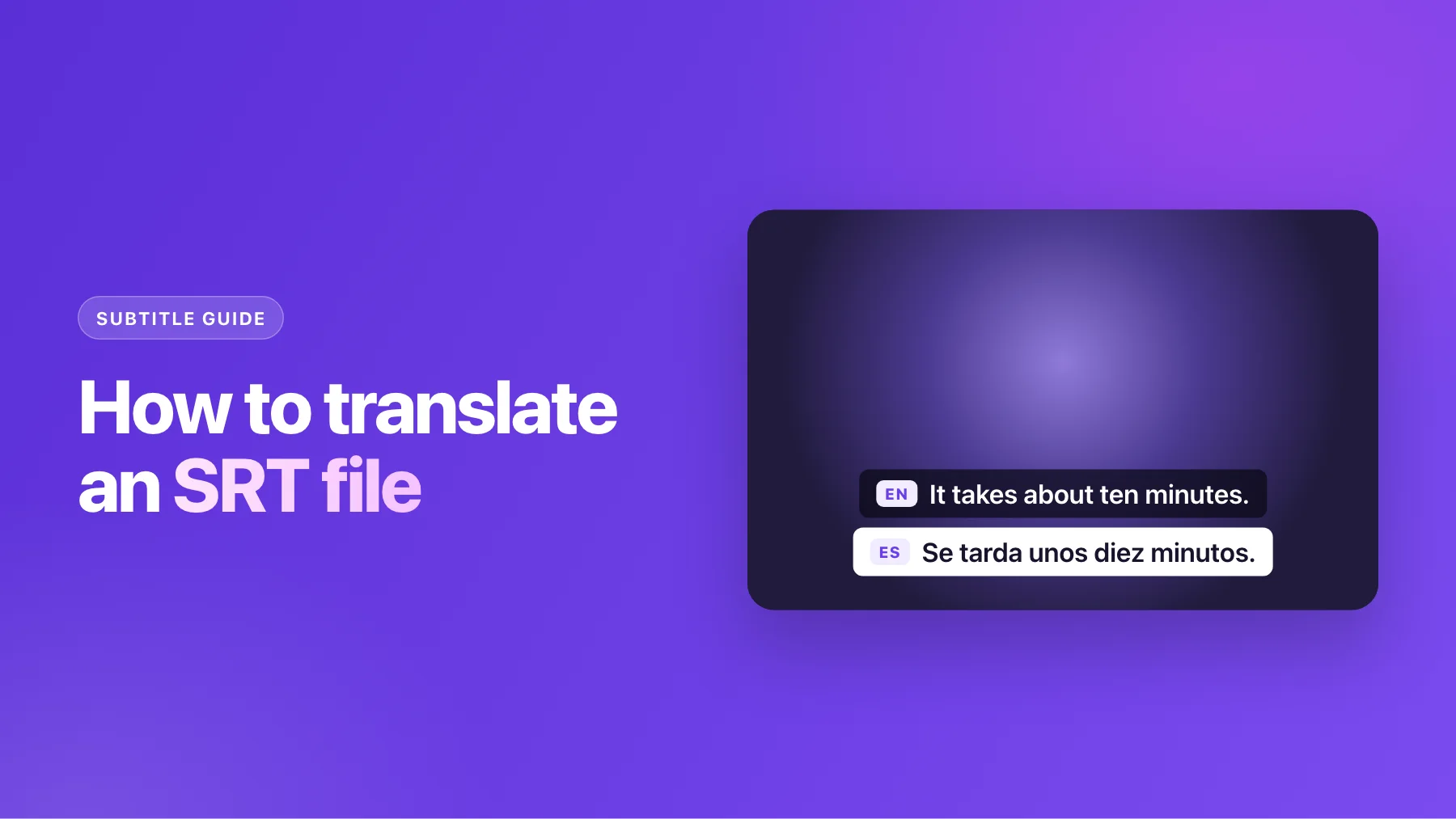
An SRT file is the most common way to ship subtitles: YouTube, Premiere, DaVinci Resolve, CapCut and nearly every video player read it. Translating one sounds simple. It's a text file, after all. But the format is strict, and a translation that touches the wrong line can push every subtitle out of sync or stop the file loading at all.
This guide explains how an SRT file is built, the safe way to translate one, what usually breaks, and how long a translated line can be before viewers can't keep up.
What's inside an SRT file
Open an .srt file in any text editor and you'll see plain text in numbered blocks, called cues:
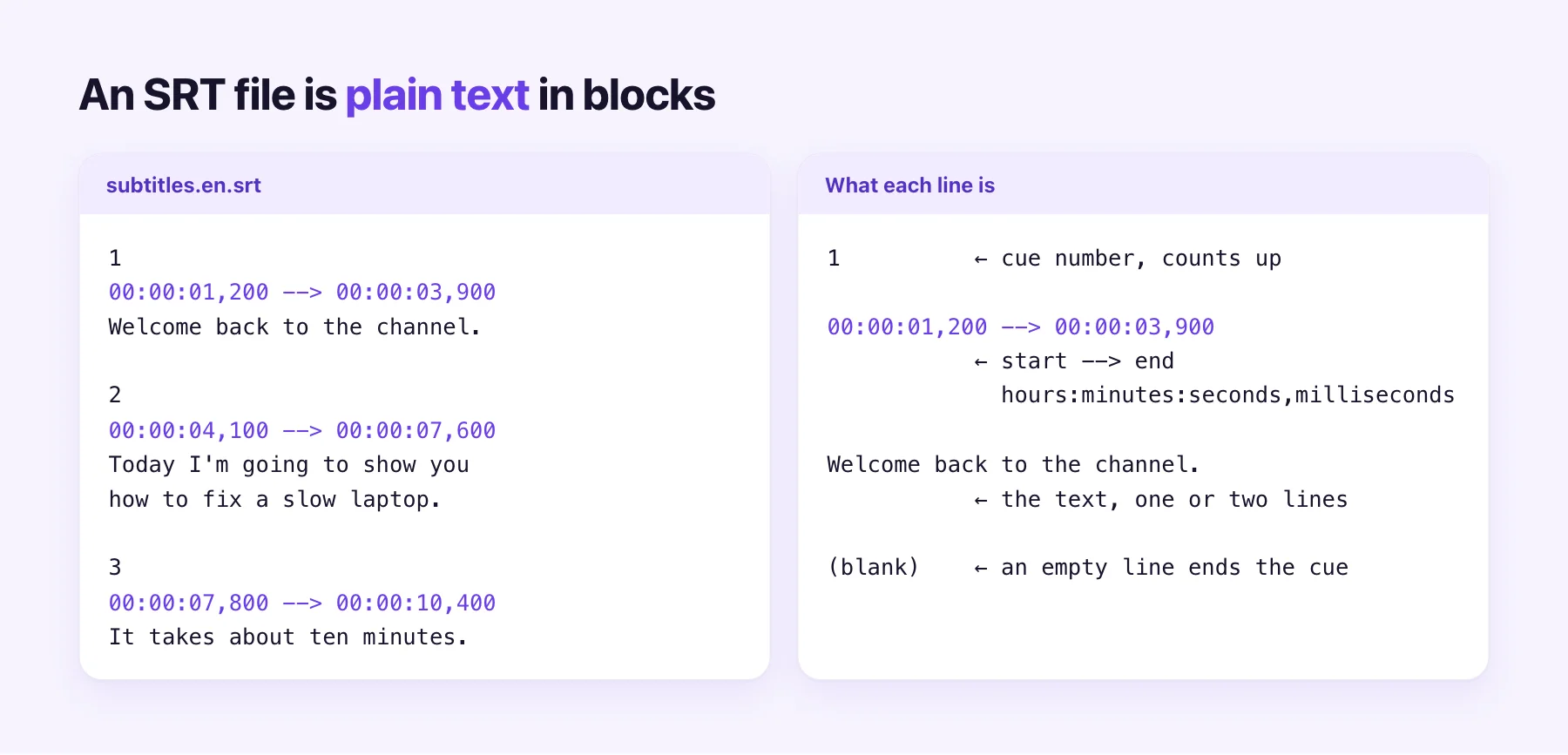
Each cue has four parts:
- A number, counting up from 1.
- A timing line: the start and end, written
hours:minutes:seconds,millisecondswith-->between them. - The text, usually one or two lines.
- A blank line, which ends the cue.
That's the whole format. Players read it top to bottom and show each text between its start and end time. Because it's so simple, it's also fragile: a missing blank line merges two cues, and a timing line with a typo can make a player skip the rest of the file.
The rule: translate the text, keep everything else
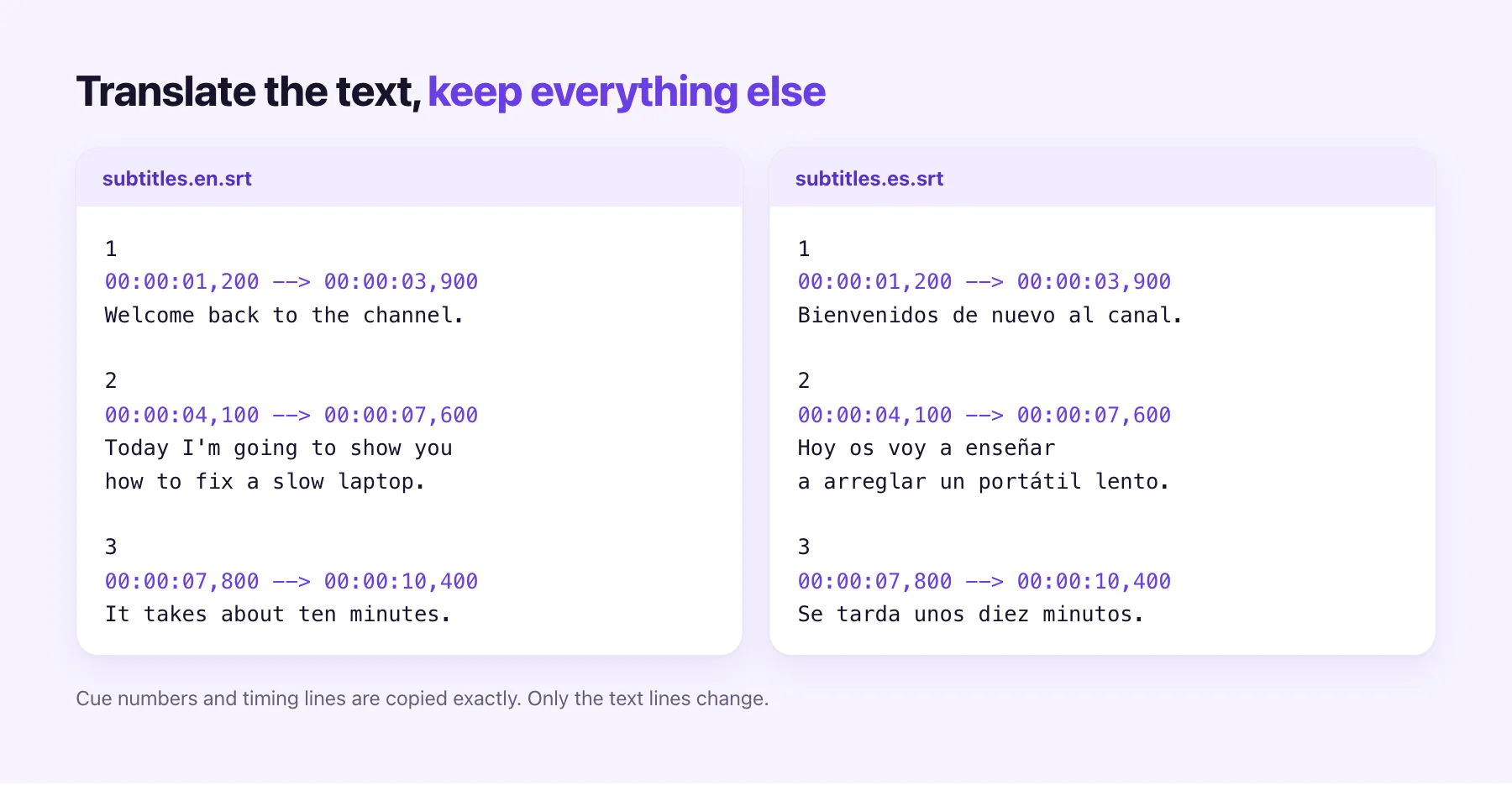
A translated SRT has exactly the same number of cues, the same numbers and the same timing lines as the original. Only the text changes. If you keep to that, the translation lines up with the video automatically.
There are three ways to get there.
By hand
Fine for a short clip. Copy the file, then overwrite each text line with its translation. Save it as UTF-8 (most editors offer this in "Save as"), name it with the language code, like video.es.srt, and you're done. For anything longer than a few minutes this gets slow, and it's easy to delete a blank line by accident.
With a general translator
Pasting the whole file into a general-purpose translator is where most problems start. Translators don't know which lines are timing, so they sometimes "translate" them too: the comma becomes a dot, the arrow loses its spaces, or numbers are reformatted. They also translate each cue alone, which mangles sentences that run across two cues. If you go this way, check every timing line afterwards.
With a subtitle translator
A subtitle translator reads the file as subtitles, not as text. It translates the text of each cue in context, copies the numbers and timing exactly, and writes a valid file back. On the subtitle translator, you drop the .srt or .vtt file where a video would go and pick the language.
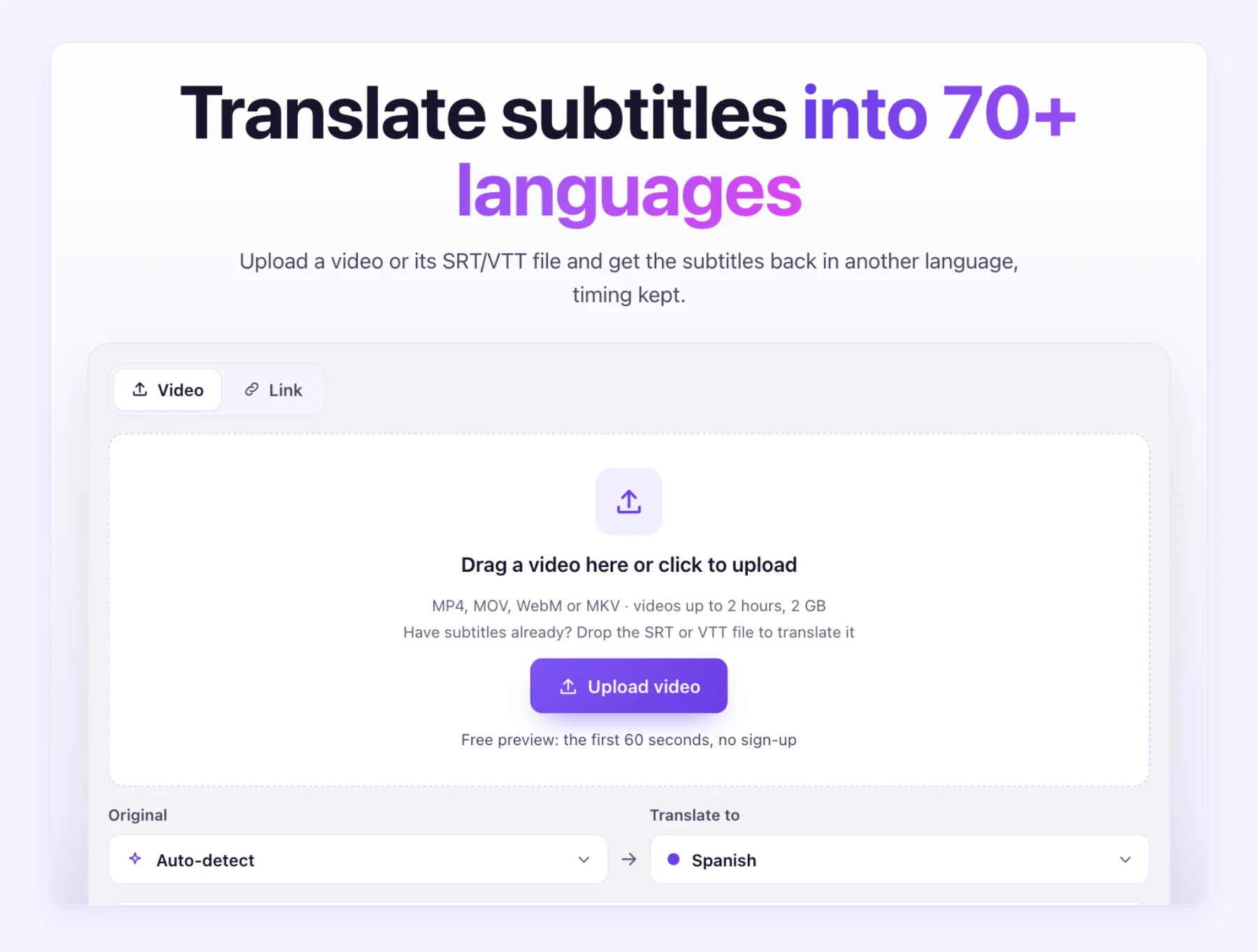
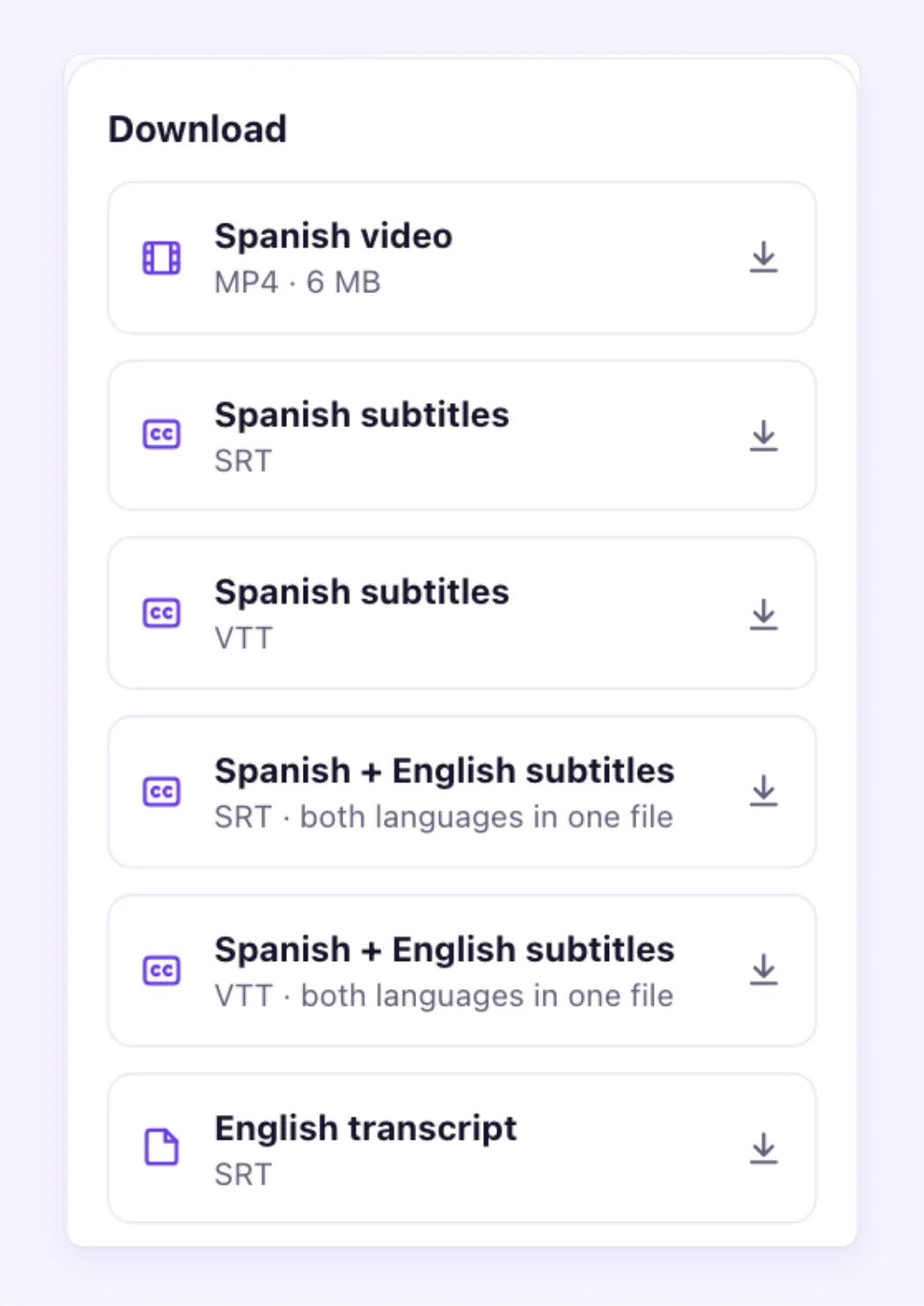
Before you download, every line shows next to the original with its time, so you can fix a name or a term. A glossary keeps your brand and product names untranslated in every file. Then download the new SRT, a VTT, or a bilingual file with both languages. We translate into 70+ languages, and you can pick more than one at a time.
What breaks, and how to spot it
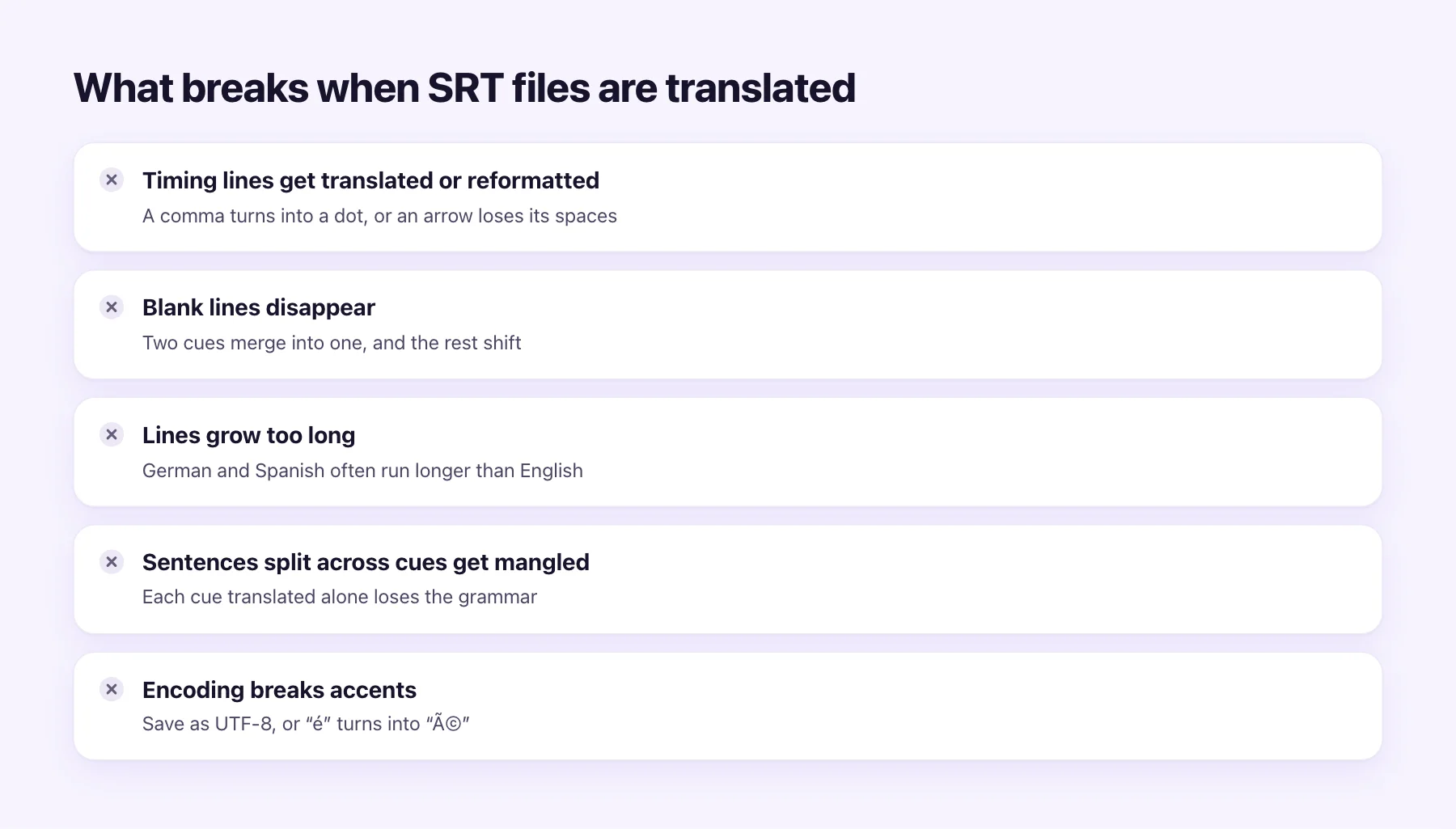
- Timing lines changed. Search the translated file for
-->and check each line still reads00:00:00,000 --> 00:00:00,000. - Blank lines lost. The cue count should match the original. If the last number is different, two cues merged somewhere.
- Lines too long. German, Spanish and French often run longer than English. A line that fit before may now wrap into three, or flash by too fast to read.
- Sentences split across cues. If a sentence runs over two cues, read both translated cues together; word order often changes between languages.
- Broken accents. If "é" shows up as "é", the file was saved in the wrong encoding. Save it again as UTF-8.
How long can a subtitle line be?
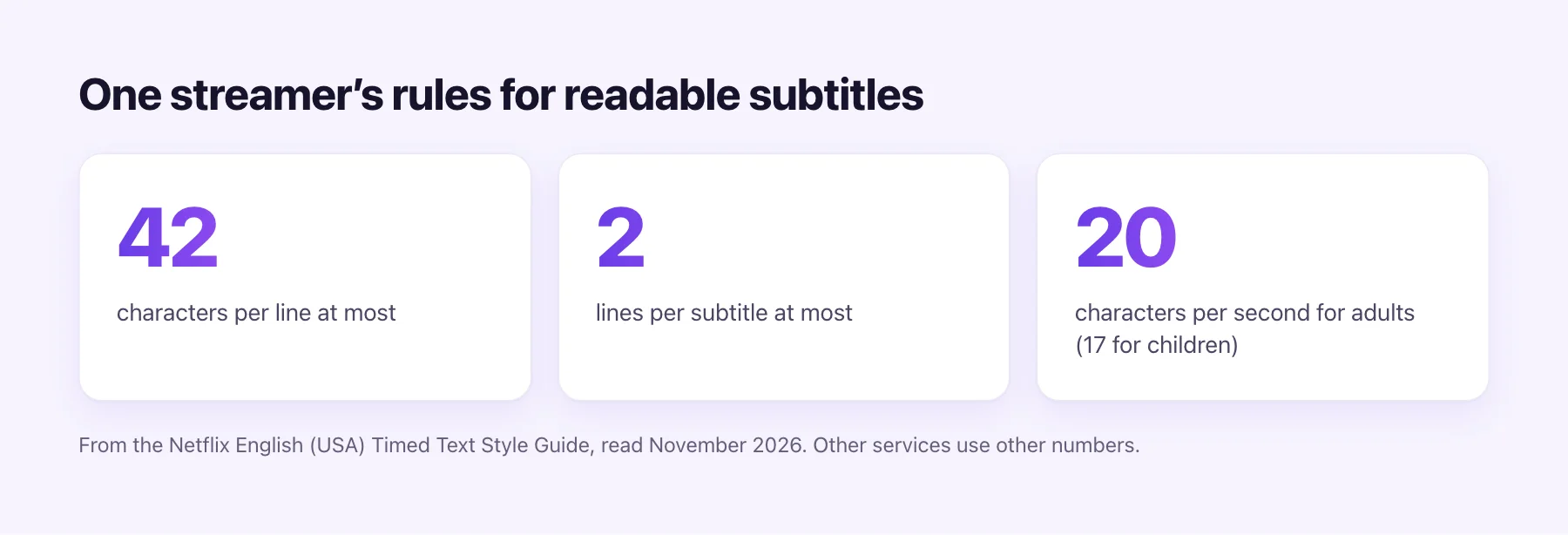
There's no single law, but streaming services publish style guides, and they agree roughly on the shape. Netflix's English (USA) guide is a common reference:
| Limit | Netflix English (USA) |
|---|---|
| Characters per line | 42 |
| Lines per subtitle | 2 at most |
| Reading speed | Up to 20 characters per second for adults, 17 for children's programs |
Other services and other languages use other numbers, so treat these as a sensible ceiling for YouTube and social video, not a rule you must hit exactly. If a translated cue is far over, shorten the wording before you split the timing: viewers prefer a slightly freer translation to a subtitle that vanishes before they've read it.
SRT or VTT?
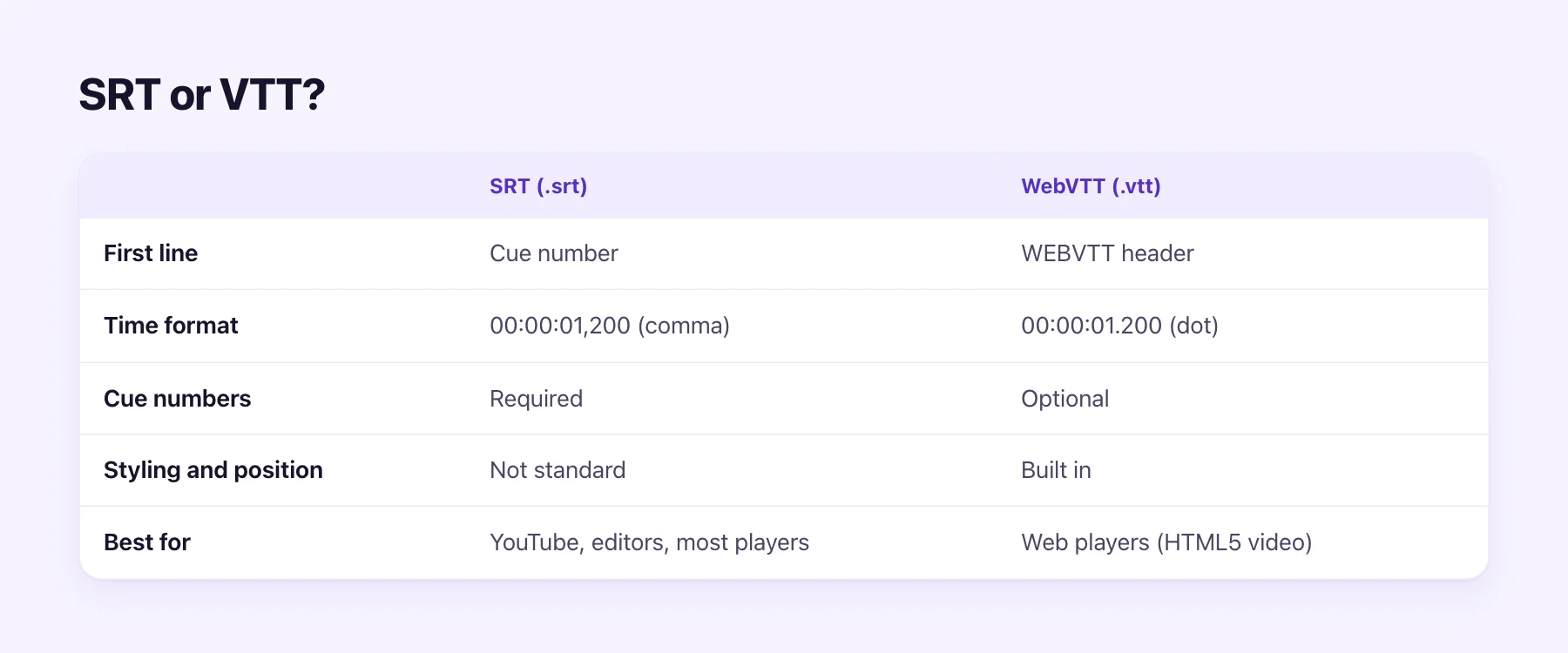
The two formats are close cousins. WebVTT starts with a WEBVTT line, uses a dot before the milliseconds instead of a comma, makes cue numbers optional, and supports position and styling. It's the format web players use. SRT is the safer default for editors and YouTube, though YouTube accepts both. If you have one and need the other, our free SRT to VTT converter changes the format without touching the text.
Bilingual subtitles
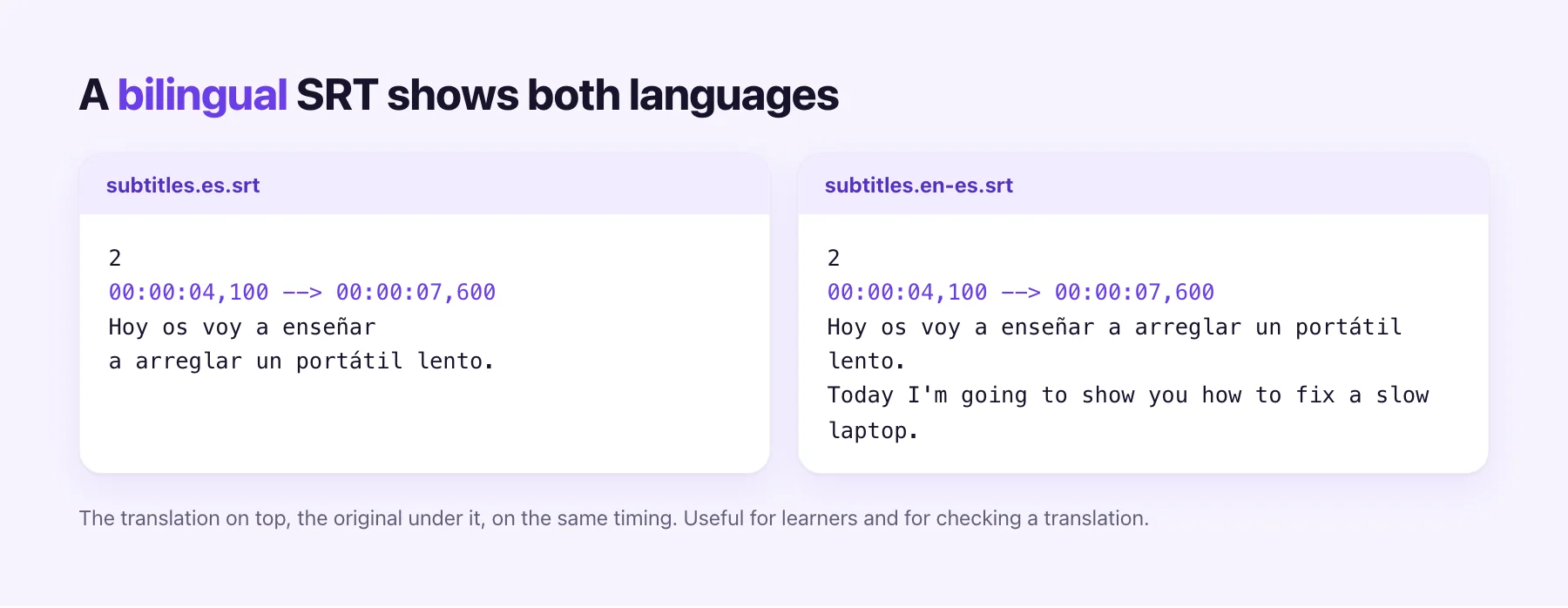
A bilingual subtitle file shows both languages in each cue: the translation on top, the original under it. It's popular for language-learning videos, and it's the quickest way to check a translation, since each original line sits right under its translation. AI Video Dubbing gives you one, as SRT or VTT, with every subtitle translation.
No subtitle file yet?
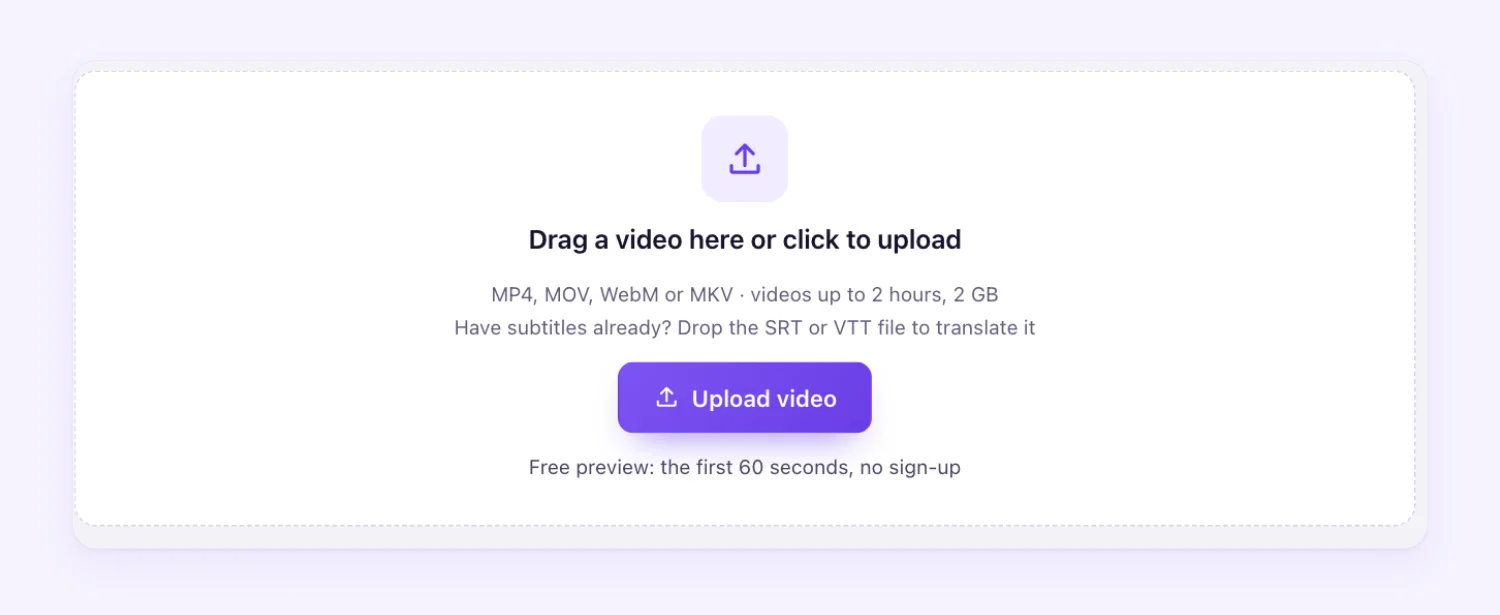
If you only have the video, start one step earlier. Upload the video to the subtitle translator or the AI subtitle generator and it writes down what is said first, with timing taken from the speech, then translates it. You get an SRT of the original language too.
| What you have | What to upload | What you get |
|---|---|---|
| An SRT or VTT file | The file | Translated SRT and VTT, plus a bilingual file |
| Only the video | The video (MP4, MOV, WebM, MKV) | Original-language SRT, translated SRT and VTT, bilingual file |
| Only the audio | The audio file | The same, from the speech |
Subtitles cost 0.2 credit / min, from $0.07 a minute at the lowest price, and the first 60 seconds of every file are free.
Uploading the translated file
- YouTube: in YouTube Studio, open Subtitles, pick the video, Add language, then add subtitles with Upload file and choose With timing. See how to translate a YouTube video for the rest.
- Editors: import the SRT into Premiere, DaVinci Resolve or CapCut as a caption track. That's also how you burn subtitles into the picture, which AI Video Dubbing doesn't do yet.
- Your site: use the VTT file with an HTML5 video player's
trackelement.
Have a file ready? Drop it on the subtitle translator and check the first 60 seconds for free.