How to Translate a Video: Subtitles, Voice-Over, Dubbing or Lip Sync
A practical guide to translating any video: which output fits, how AI video translation works, how to get a clean result, and what it costs.
On this page
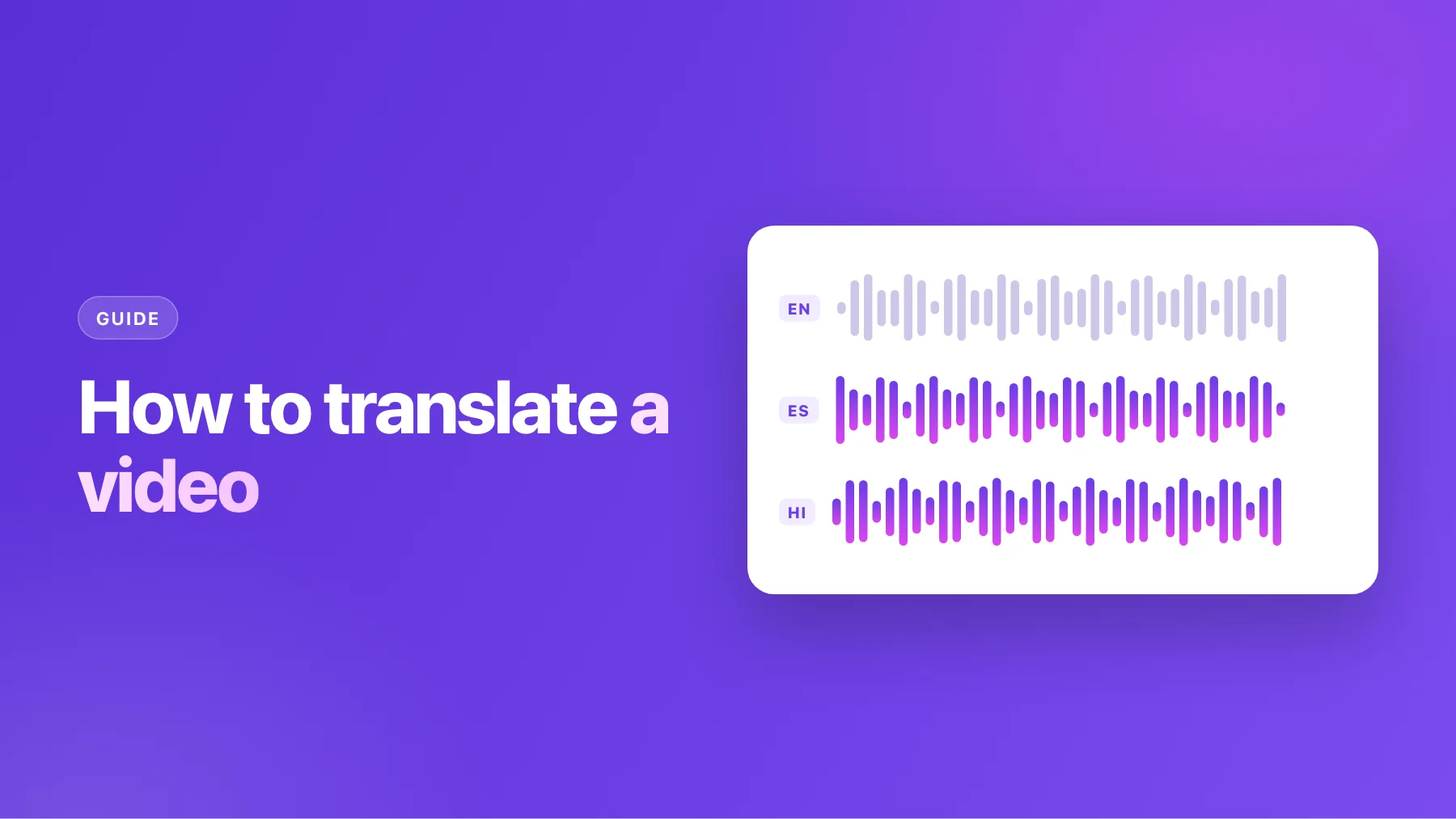
"Translate this video" can mean four quite different things. You can add subtitles in the new language, lay a translated voice over the original, replace the speech with a dub, or go one step further and move the speaker's lips to match the new words. They cost different amounts, take different effort, and suit different videos.
This guide helps you pick the right one, explains what an AI video translator actually does, and walks through translating a video from upload to download, including how to get a result that sounds natural.
Four ways to translate a video
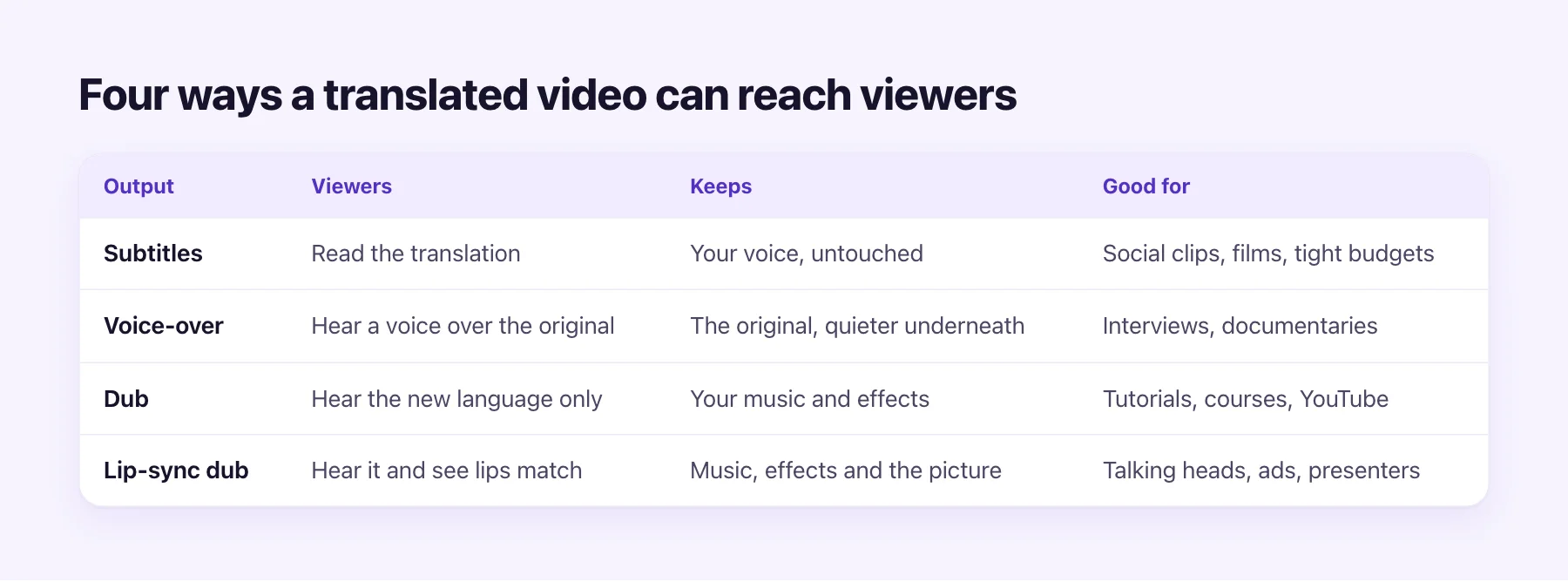
Subtitles put the translation on screen and leave the audio alone. They're the cheapest option, they keep your real voice, and many people already watch with them on. The catch is that viewers have to read, which is hard on a phone held at arm's length or a TV across the room.
Voice-over plays a translated voice on top of the original, which stays audible underneath. It's the classic sound of interviews and documentaries. It works when the original voice matters as evidence, less well for a tutorial where two voices compete.
A dub replaces the speech with the new language and keeps everything else: music, sound effects, room sound. Viewers simply hear the video in their language. For tutorials, courses, explainers and YouTube channels, this is usually the one that keeps people watching.
A lip-sync dub also changes the picture: the speaker's mouth moves to match the new words. When a face fills the frame and talks to camera, it removes the last sign that the video was made in another language.
How AI video translation works
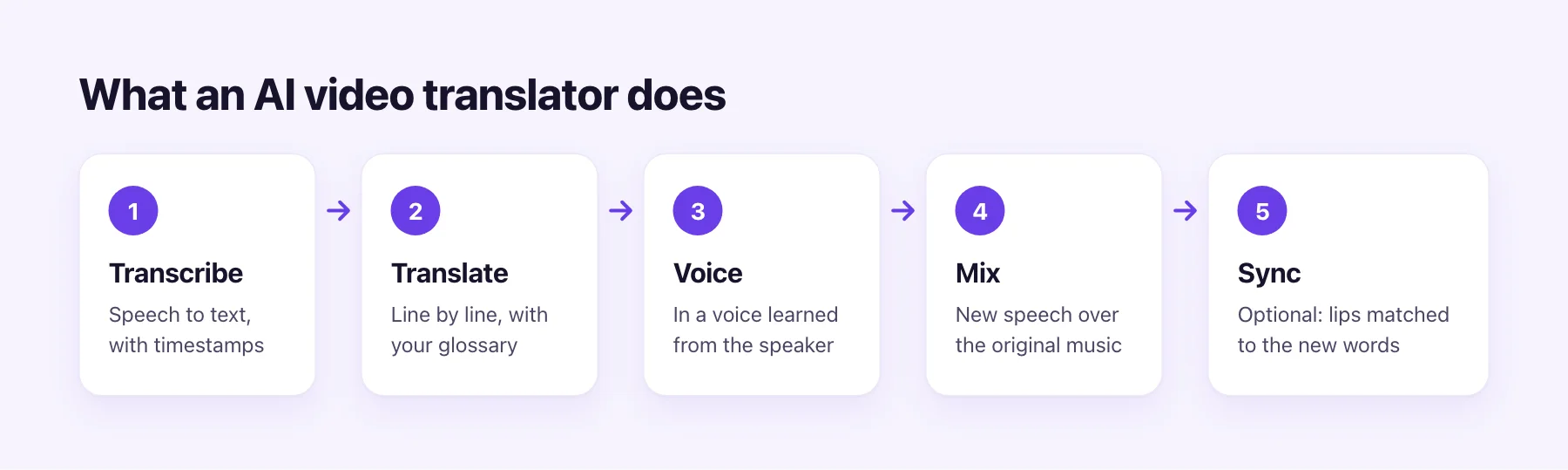
- Transcribe. Speech recognition writes down what is said, with a timestamp for each line.
- Translate. Each line is translated in the context of the lines around it, so sentences that span two lines still read naturally. A glossary keeps names and terms the way you want them.
- Voice. The translation is spoken by a voice learned from the original speaker, so the speaker still sounds like themselves.
- Mix. The new speech goes over the original music and sound effects, timed to the original lines.
- Sync (optional). For a lip-sync dub, the mouth area of the picture is regenerated to match the new audio.
Subtitles stop after step 2. A dub runs to step 4, and lip sync runs all five.
Step by step: translating a video with AI Video Dubbing
1. Upload the video
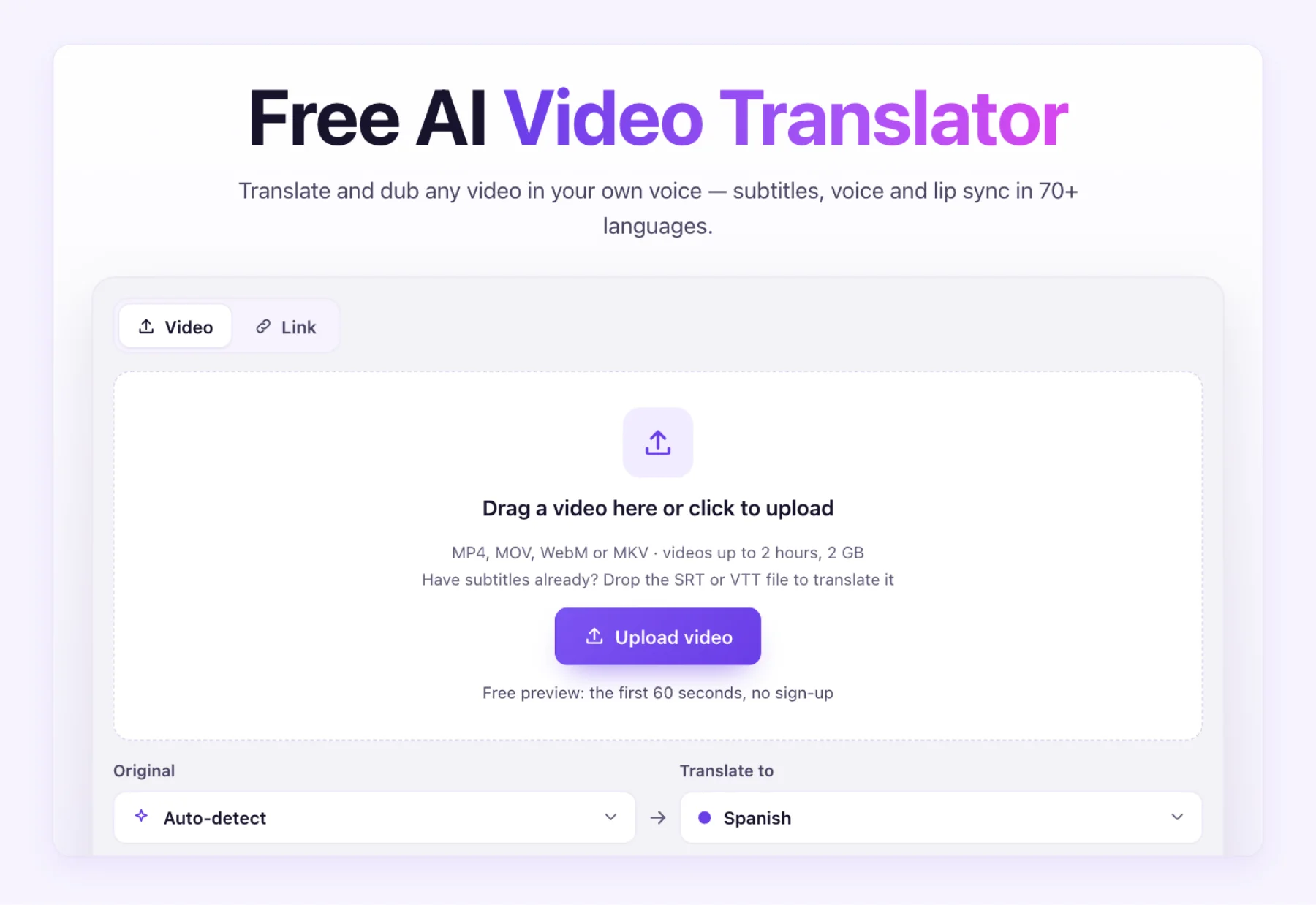
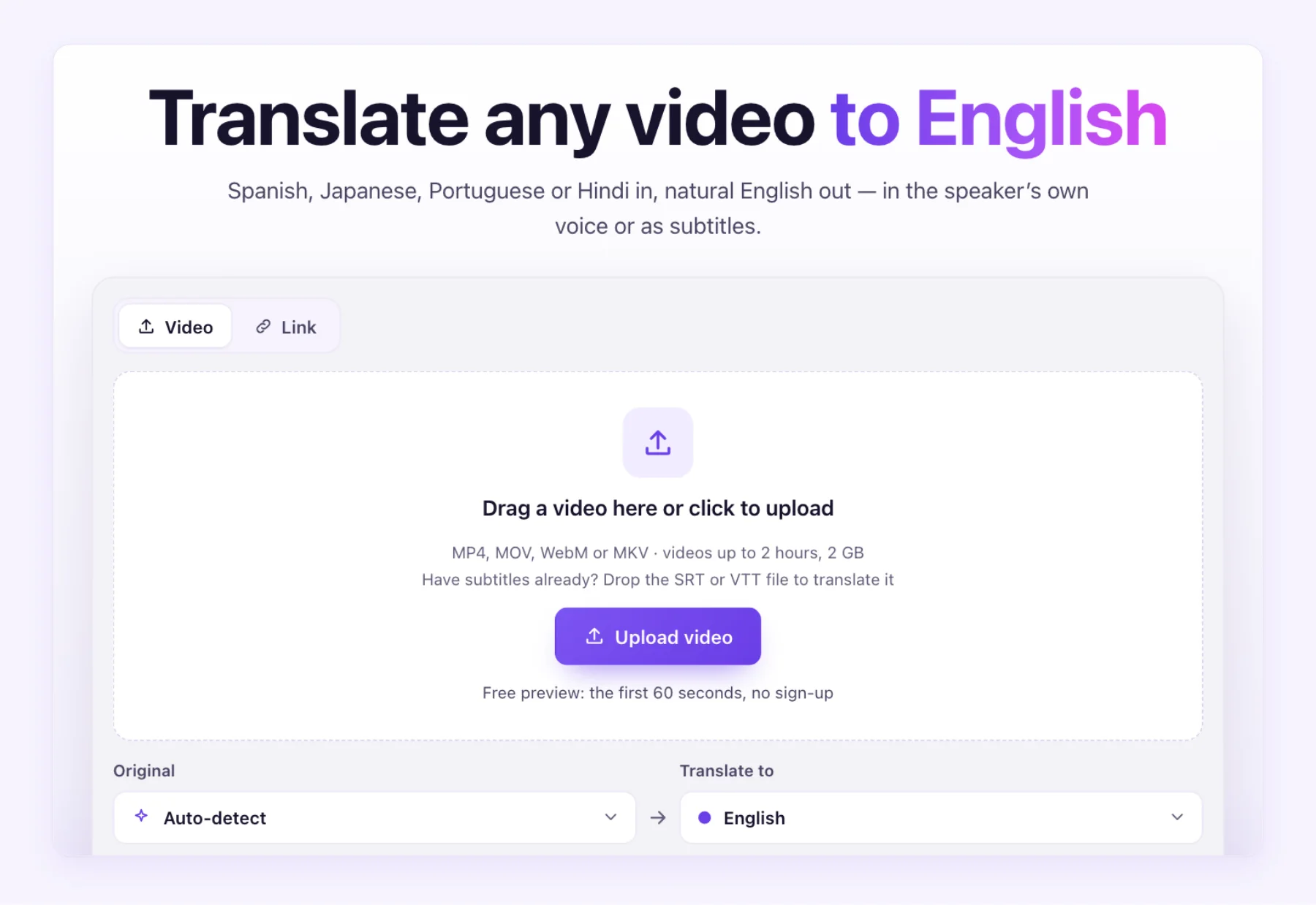
Drop the file on the video translator. MP4, MOV, WebM and MKV up to 2 GB work, and you can trim before upload if you only need part of it.
Link import is coming soon; for now, upload the file.
2. Pick the languages and the output
Leave the original language on Auto-detect, or set it if the video mixes languages. Choose the target language. AI Video Dubbing subtitles 70+ languages and dubs 65+ of them in the speaker's own voice, with regional variants where they sound different, such as Mexican Spanish, European Portuguese, UK English and Canadian French. Then choose subtitles, a dub, or a lip-sync dub.
3. Check the script
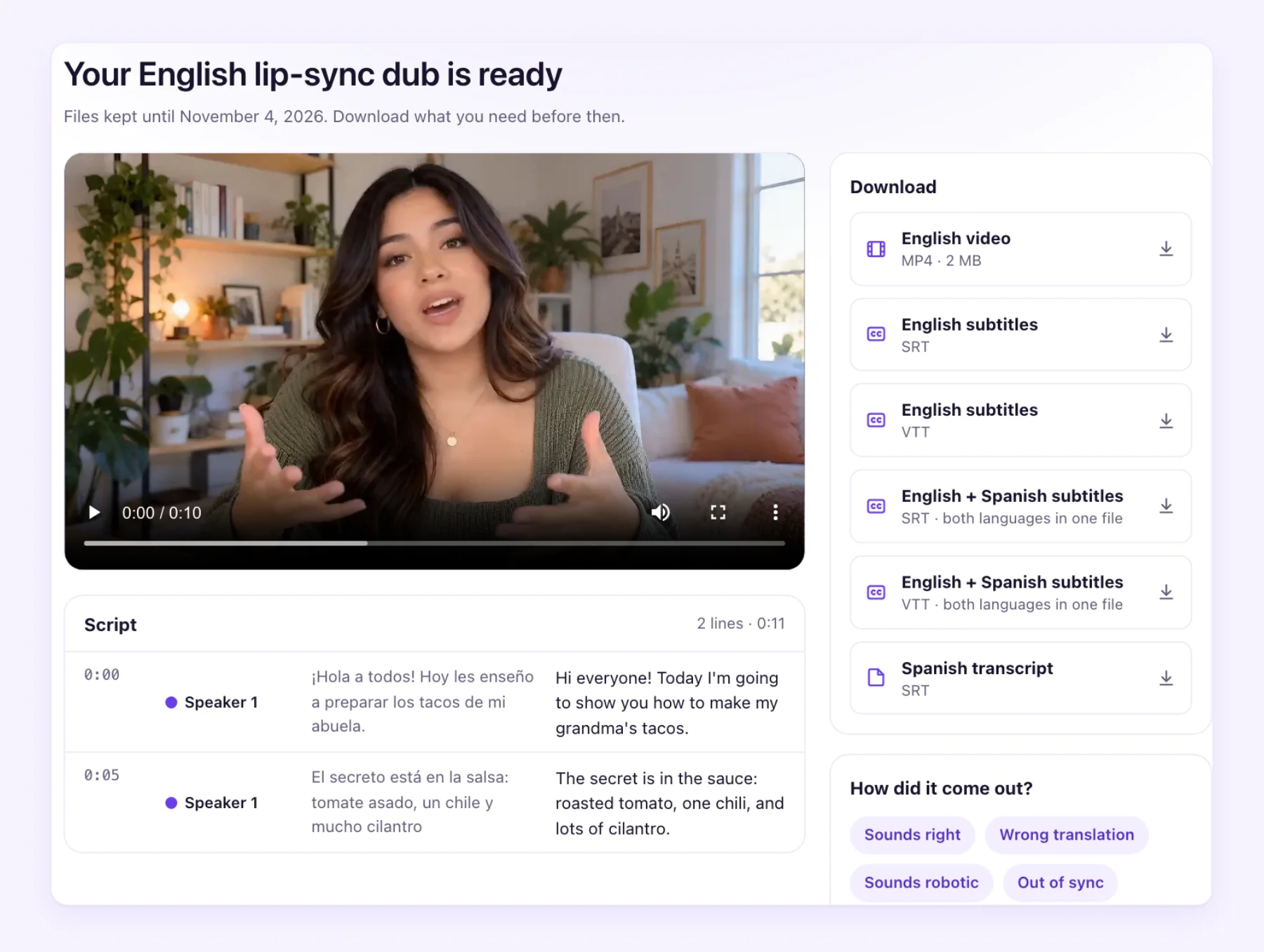
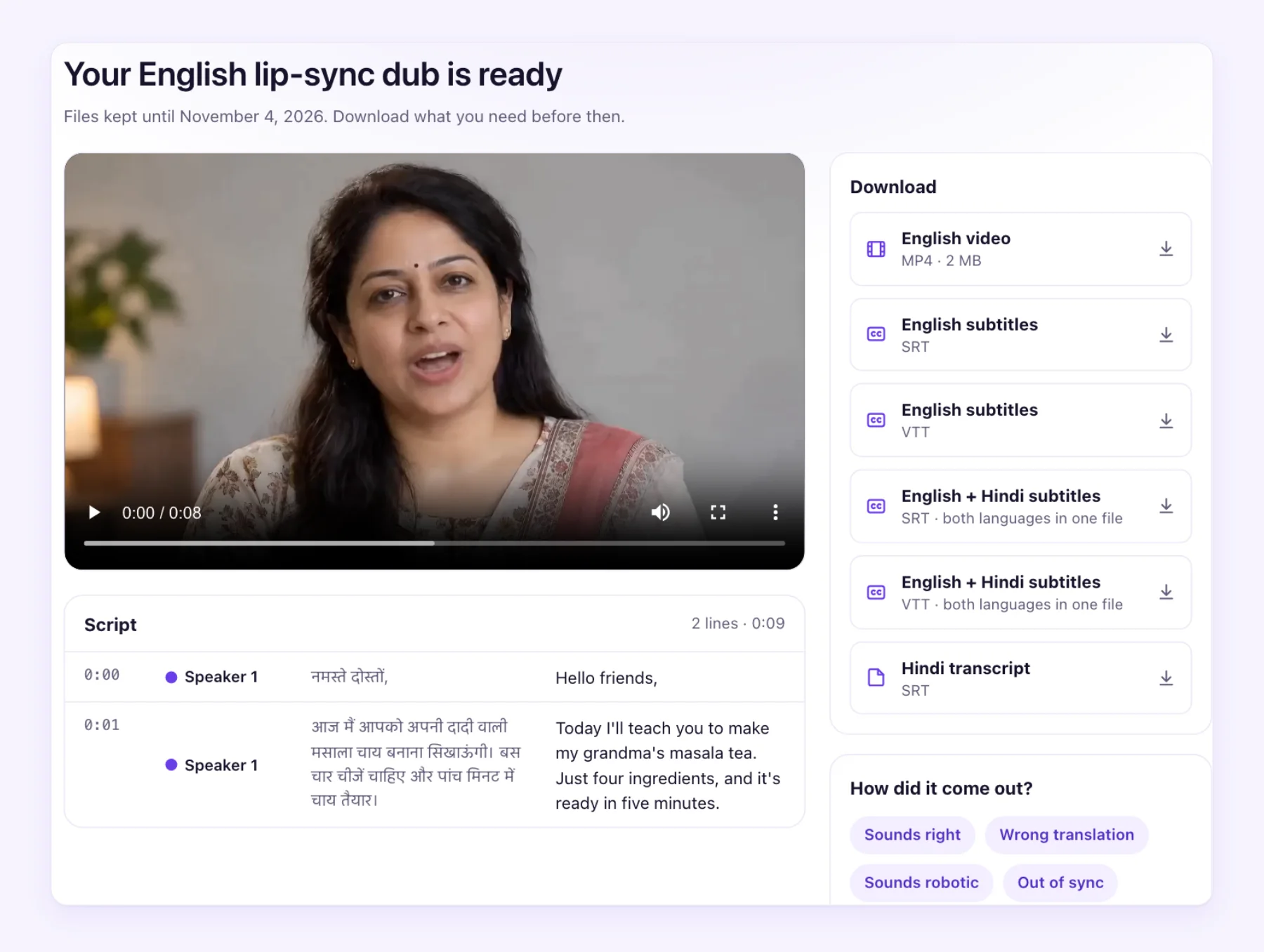
Before any voice is made, you see the transcript and the translation line by line, side by side with timestamps. This is the most valuable five minutes in the whole process. Fix names, product terms and numbers; drop a line you don't want; add words that should never be translated to the glossary.
4. Download
You get the translated MP4 with no watermark, the dub as an audio-only file with the music kept, subtitles in SRT and VTT, a bilingual subtitle file, and the transcript. Use the MP4 for social posts and your site, the audio-only file for a YouTube audio track, and the SRT for subtitles anywhere.
If a job fails, its credits go back to your balance automatically.
Translating into English
The most common direction is into English, because English reaches the most viewers worldwide. The translate video to English tool works from Spanish, Hindi, Japanese, Korean, French, Portuguese and many more.
How to get a clean translation
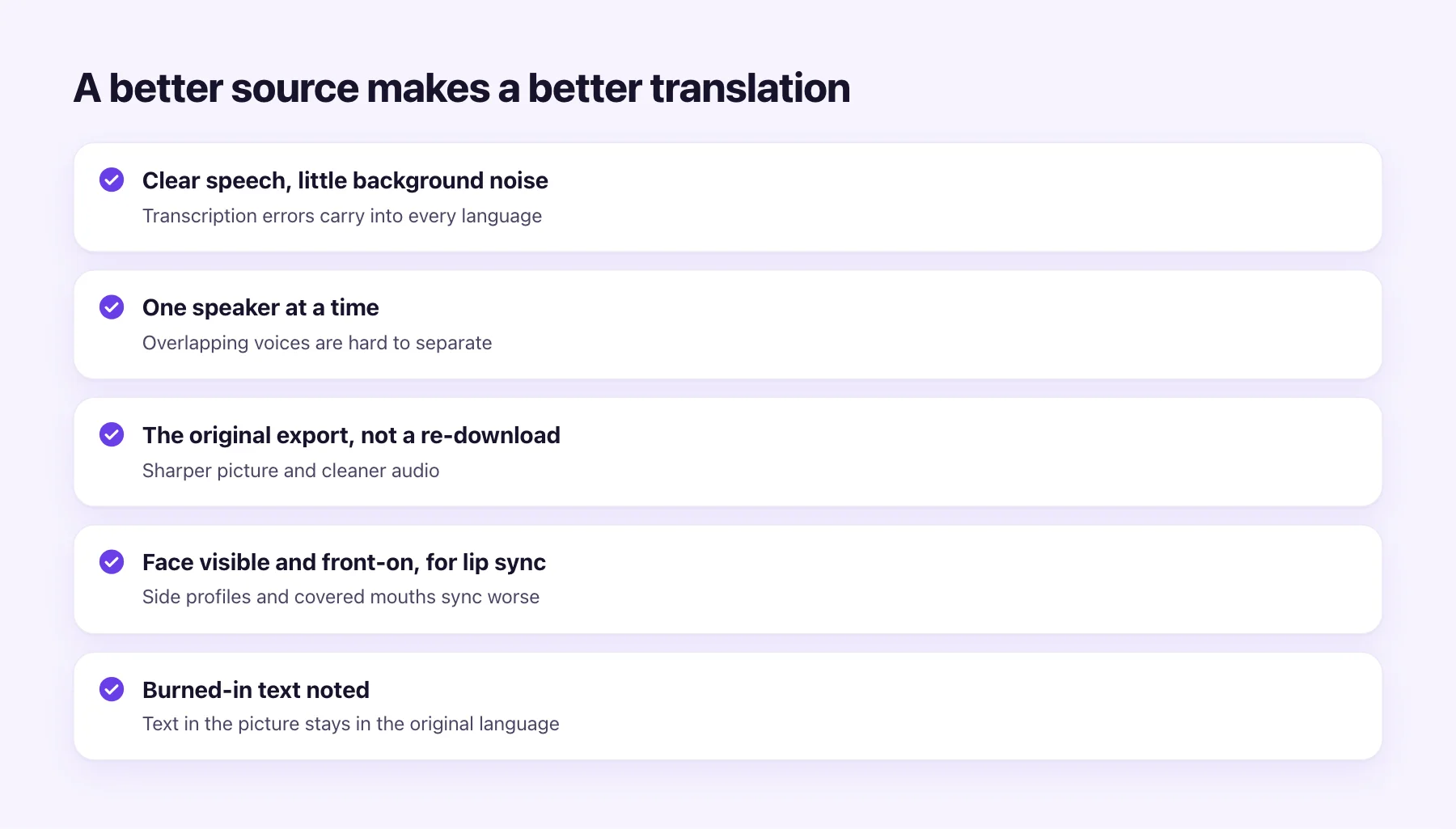
The source video decides most of the quality. A few habits help:
- Clear speech, little background noise. Transcription errors carry into every language. If you have a clean voice track from your editor, export with that.
- One speaker at a time. Overlapping voices are hard to separate and voice.
- The original export. A re-downloaded or screen-recorded copy has worse sound and picture.
- A visible, front-facing face for lip sync. Side profiles, hands over the mouth and very small faces sync worse.
- Note any burned-in text. Titles and captions in the picture stay in the original language, so plan to re-edit them or add subtitles over them.
After the result is ready, watch the first minute with sound, and if you can, ask one native speaker to watch it too.
Common problems, and how to fix them
- A name or brand comes out wrong. Speech recognition writes what it hears, so unusual names are the most common slip. Fix the line in the script before voicing, and add the name to the glossary so it stays right in every later video.
- A line sounds rushed. Languages differ in length: Spanish and German often need more words than English for the same idea. Shorten the translation in the script, and the voice has room to speak at a natural pace.
- Loud music under the speech. The dub is mixed over your original music and effects, but a loud bed makes the speech harder to hear and transcribe. If your editor can export a version with the music lower, use that.
- Two people talk over each other. Each speaker keeps their own voice, but overlapping speech is hard to separate. Trim the overlap, or accept that those lines may need a fix in the script.
- Text in the picture is still in the old language. A dub doesn't change burned-in titles. Re-edit them, or add subtitles that cover them.
- You only need part of the video. Trim it before you start, so you don't pay for an intro, an outro or a section you'll cut anyway.
What it costs
| Output | AI Video Dubbing rate | From |
|---|---|---|
| Subtitles | 0.2 credit / min | $0.07 a minute |
| Dub | 1.5 credits / min | $0.54 a minute |
| Lip-sync dub | 5 credits / min | $1.78 a minute |
The "from" price is the lowest per-minute price, on the best-value plan. The voice clone and the library voices cost nothing extra. Compare that with human work, which vendors quote in tens of dollars per minute for subtitles and far more for voice work; our guide to video dubbing costs has the ranges.
Which output should you pick?
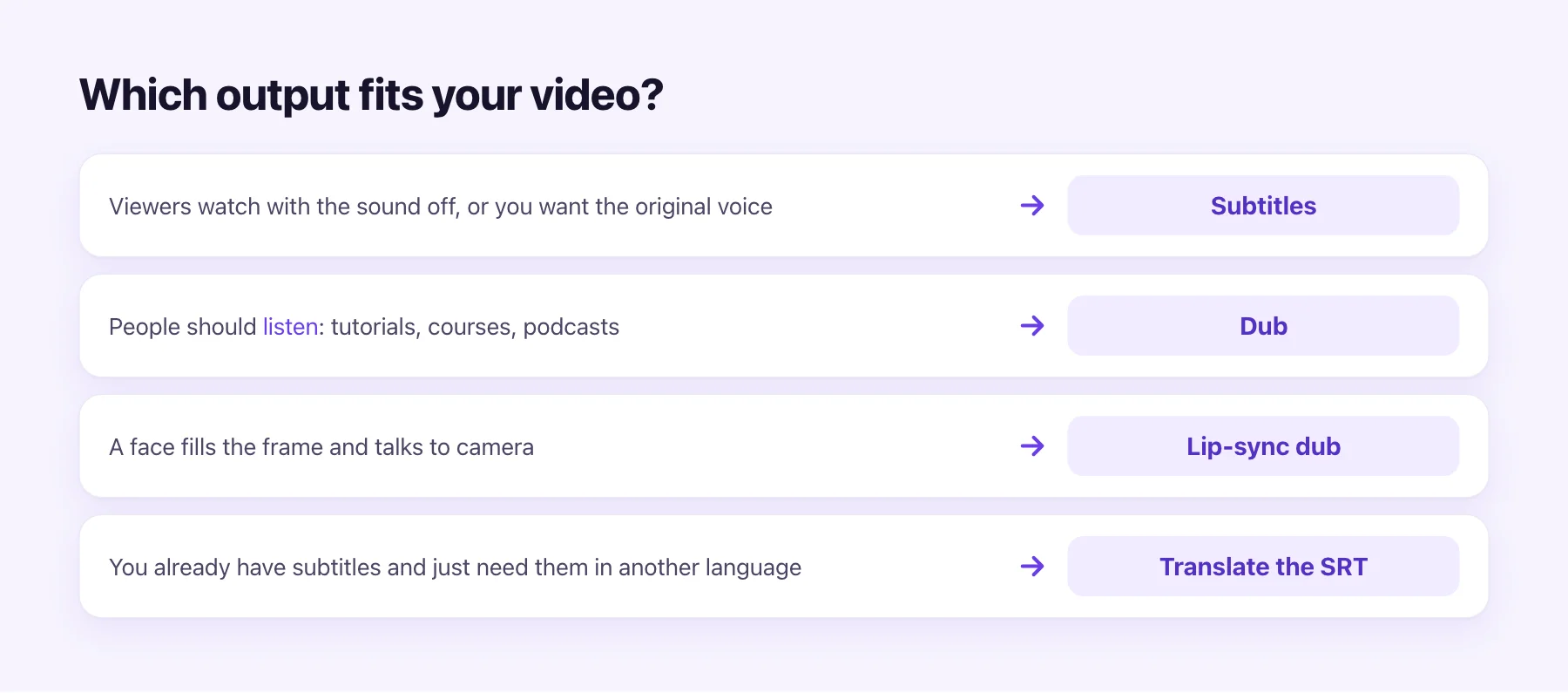
- Viewers watch with sound off, or the original voice matters: subtitles. Subtitles vs dubbing covers this choice in depth.
- Viewers should listen: a dub.
- A face talks to camera: a lip-sync dub. See what lip-sync translation is.
- You already have subtitles: translate the SRT file directly.
Not sure? Try the first 60 seconds as a dub for free, and decide once you've heard it.