YouTube Auto-Dubbing: How It Works, How to Turn It Off, and When to Dub Yourself
YouTube now dubs eligible videos automatically. Which languages it covers, which videos it skips, how to turn it off, and when your own dub is better.
On this page
If you've uploaded to YouTube lately, some of your videos may already speak Spanish, Hindi or Japanese. YouTube's automatic dubbing translates the speech in eligible videos and adds it as extra audio tracks, with no work from you. That's a big change for small channels: a reach that used to cost a voice actor per language now arrives for free.
It also raises questions. Which videos get dubbed? Can you check what it says? How do you switch it off, and when is a dub you make yourself worth the effort? This guide answers each, using YouTube's own help pages (read in November 2026).
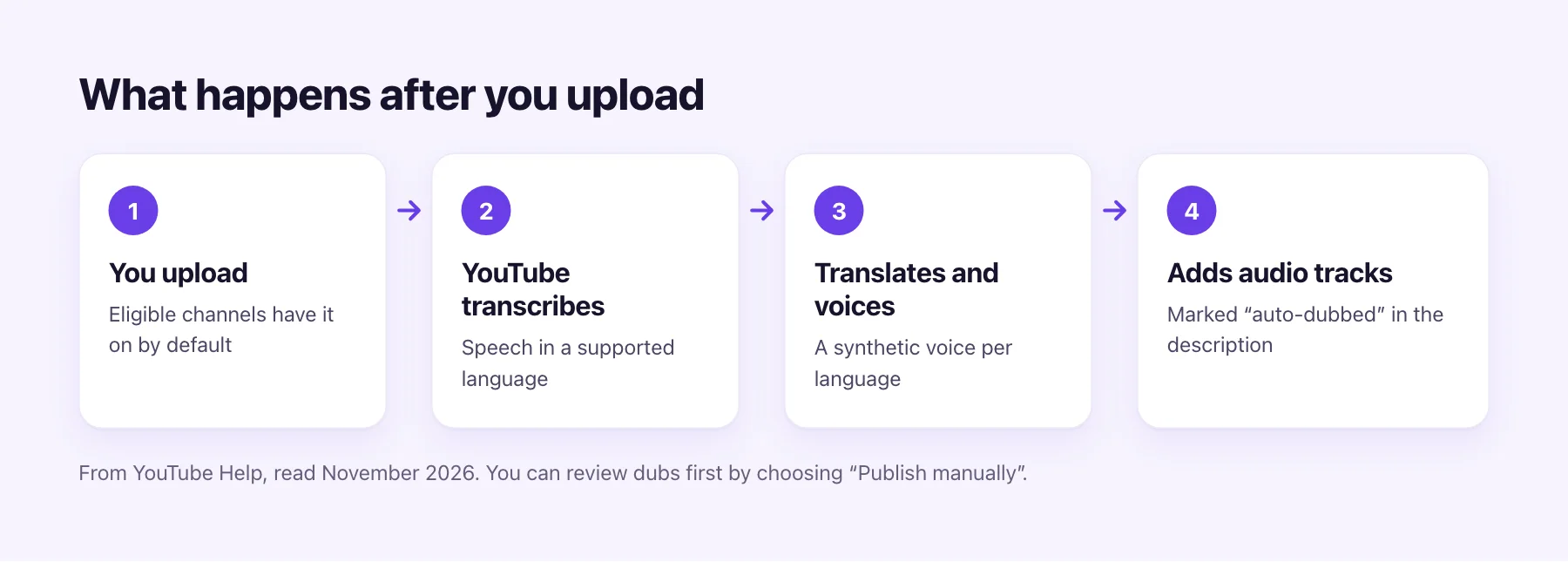
How YouTube auto-dubbing works
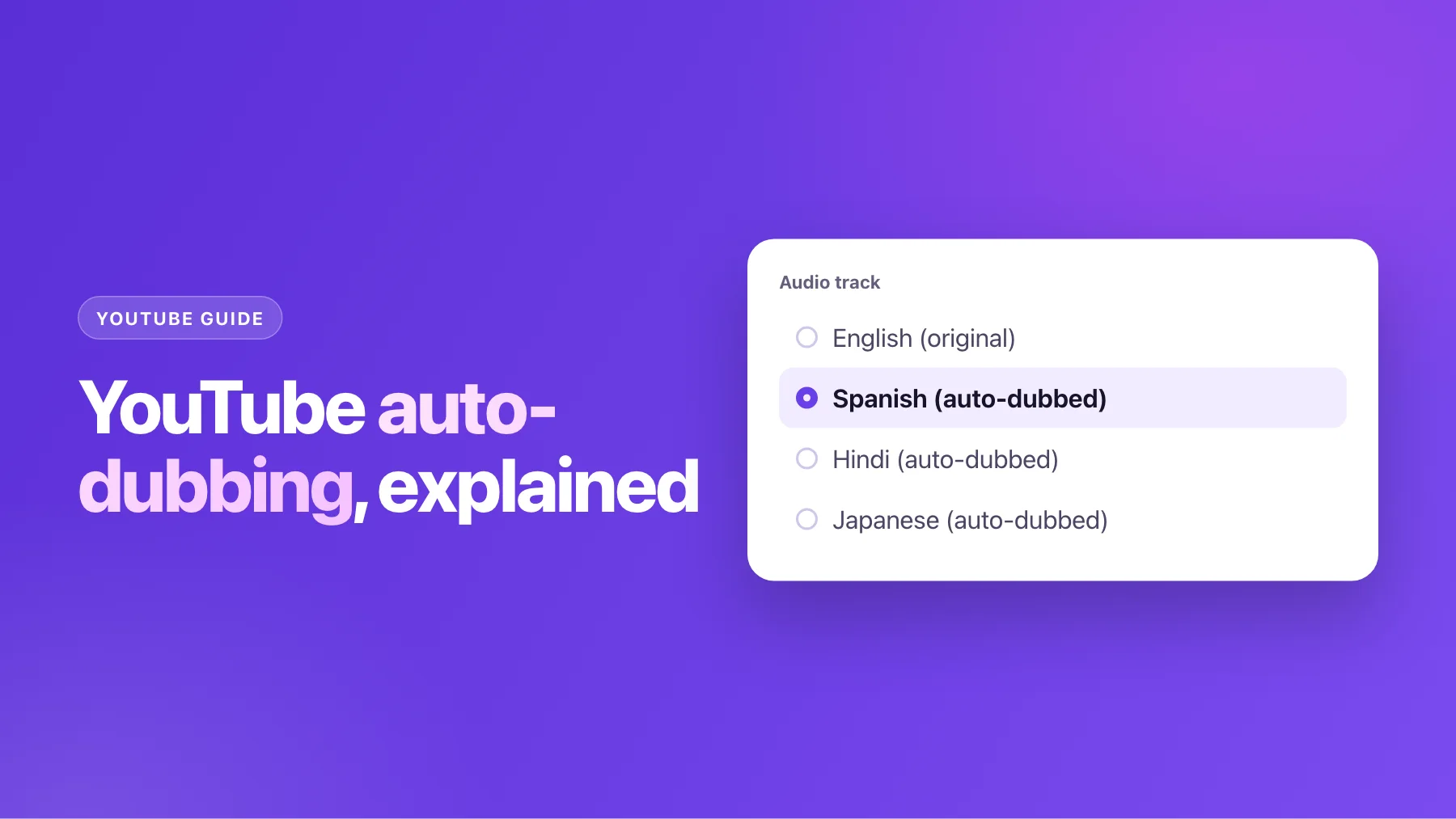
YouTube says automatic dubbing is "enabled by default for eligible creators". When you upload, it detects the language, transcribes the speech, translates it and voices it with a synthetic voice. Each dub becomes an audio track on the same video, and the description marks the video as auto-dubbed so viewers know.
Viewers hear the dub in their preferred language. They can set those languages in their account, or switch between the original and the dubbed tracks in the player's settings on any video.
For some language pairs YouTube uses what it calls expressive speech, which tries to "replicate the original audio's pitch and intonation". It isn't used for every pair or every video, so many dubs still sound like a generic narrator rather than you.
Which languages are covered
The list depends on the language you speak in.
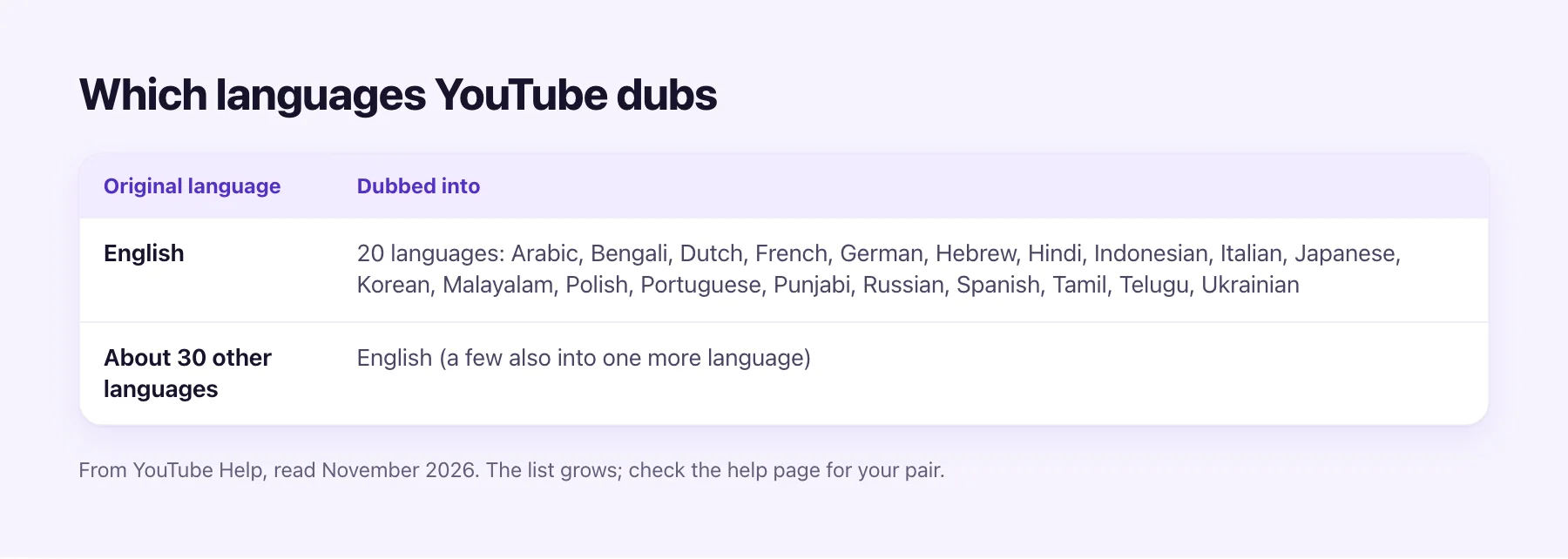
| You speak | YouTube dubs into |
|---|---|
| English | Arabic, Bengali, Dutch, French, German, Hebrew, Hindi, Indonesian, Italian, Japanese, Korean, Malayalam, Polish, Portuguese, Punjabi, Russian, Spanish, Tamil, Telugu, Ukrainian |
| About 30 other languages | English (and for a few, one more language) |
So an English channel can reach 20 languages automatically, but a Spanish channel gets English only, and a Hindi channel can't reach Spanish speakers at all this way. If the pair you need isn't on the list, you'll have to make the dub yourself. AI Video Dubbing subtitles across 70+ languages and dubs 65+ of them, including pairs like Spanish to Portuguese or Hindi to English.
Videos YouTube won't dub
Even on an eligible channel, some videos are skipped:
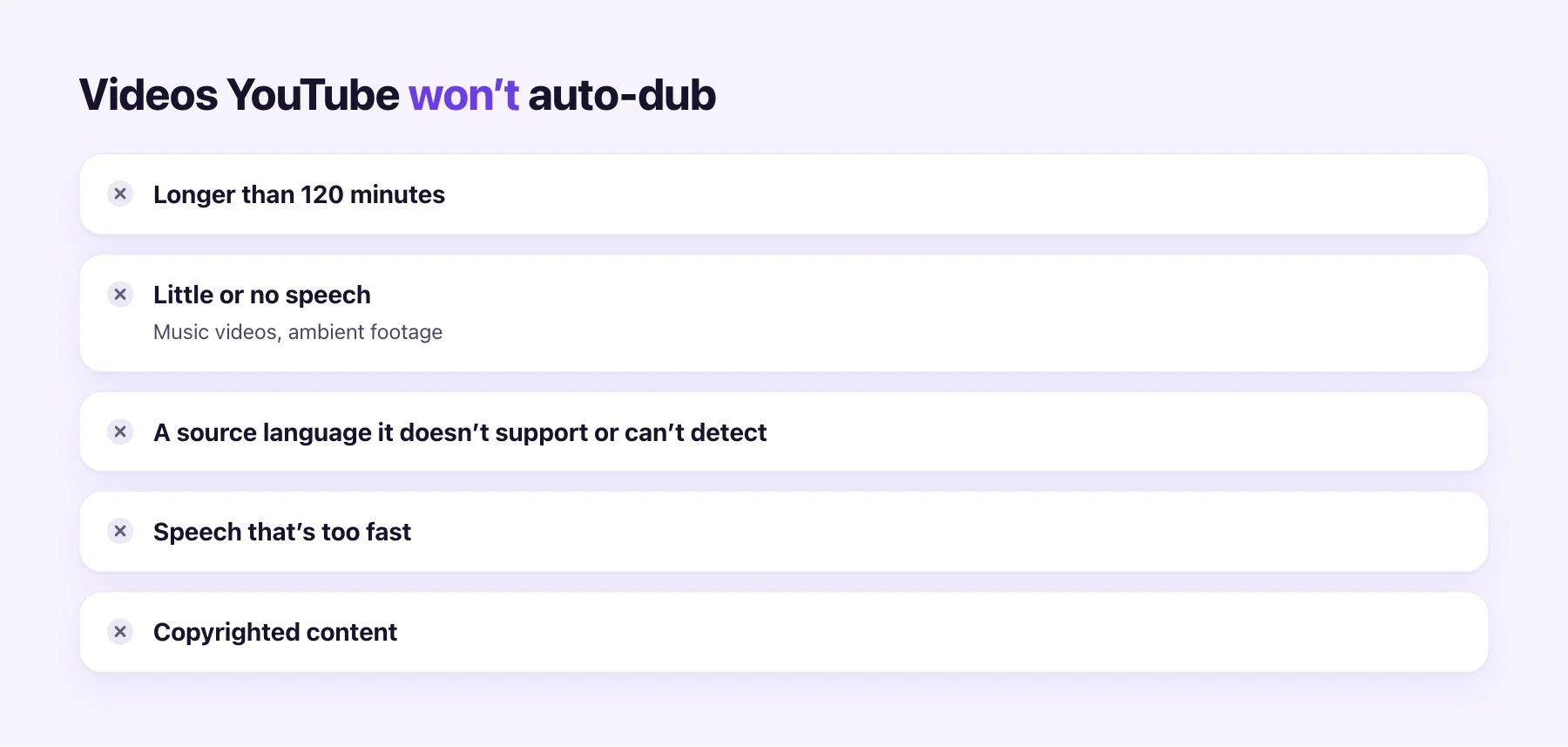
- Videos over 120 minutes, which rules out most livestream replays and long podcasts.
- Videos with little or no speech, such as music videos or ambient footage.
- A source language YouTube doesn't support or can't detect.
- Speech that's too fast to dub naturally.
- Copyrighted content.
If your best videos fall into one of these, automatic dubbing won't help them, however good it gets.
How to turn auto-dubbing off, or review first
You have three levels of control, and the first two live in the YouTube Studio app:
- Off for the whole channel. Profile → Settings → Content → Automatic dubbing, then switch it off.
- Publish manually. In the same place, choose to review dubs before they go live. Nothing is published until you approve it.
- One dub at a time. In YouTube Studio on a computer, open Languages and pick the video. You can preview a dub, review its transcript, publish, unpublish or delete it. Deleted dubs can't be restored.
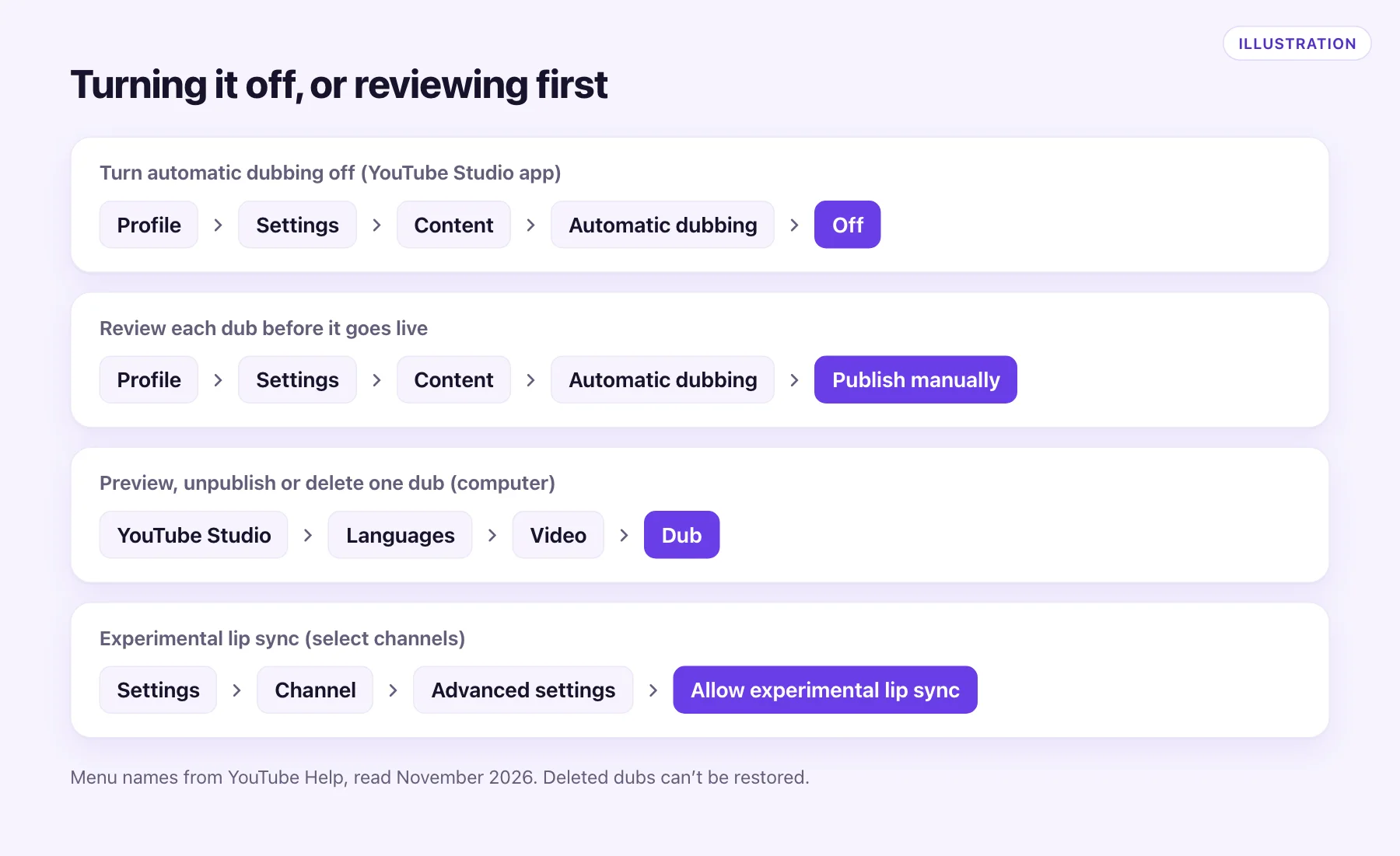
There's also an experimental lip sync option for select channels (Settings → Channel → Advanced settings → Allow experimental lip sync). If you don't see it, your channel isn't in the test yet.
One thing you can't do is edit what the dub says. YouTube's help page is clear about it: if the dub mistranslates a name or a joke, the only fix is to correct the original captions, which makes YouTube generate the dub again.
The limits that matter for creators
Automatic dubbing is free and on by default, so for many videos it's simply a bonus. The limits show up when the video matters:
- No script review. You can preview the result, but you can't change a word of it. Brand names, product terms and slang are where machine translation slips, and a wrong word in your voice-over is hard to unhear.
- A voice that isn't yours. Outside the pairs with expressive speech, the voice is synthetic and generic. Channels built on a personality lose part of what made people subscribe.
- A fixed list of pairs. If your audience is in a language YouTube doesn't cover from yours, there's no dub at all.
- No files. The dub lives only on YouTube. You can't post it to TikTok, Instagram or your own site.
When to make your own dub instead
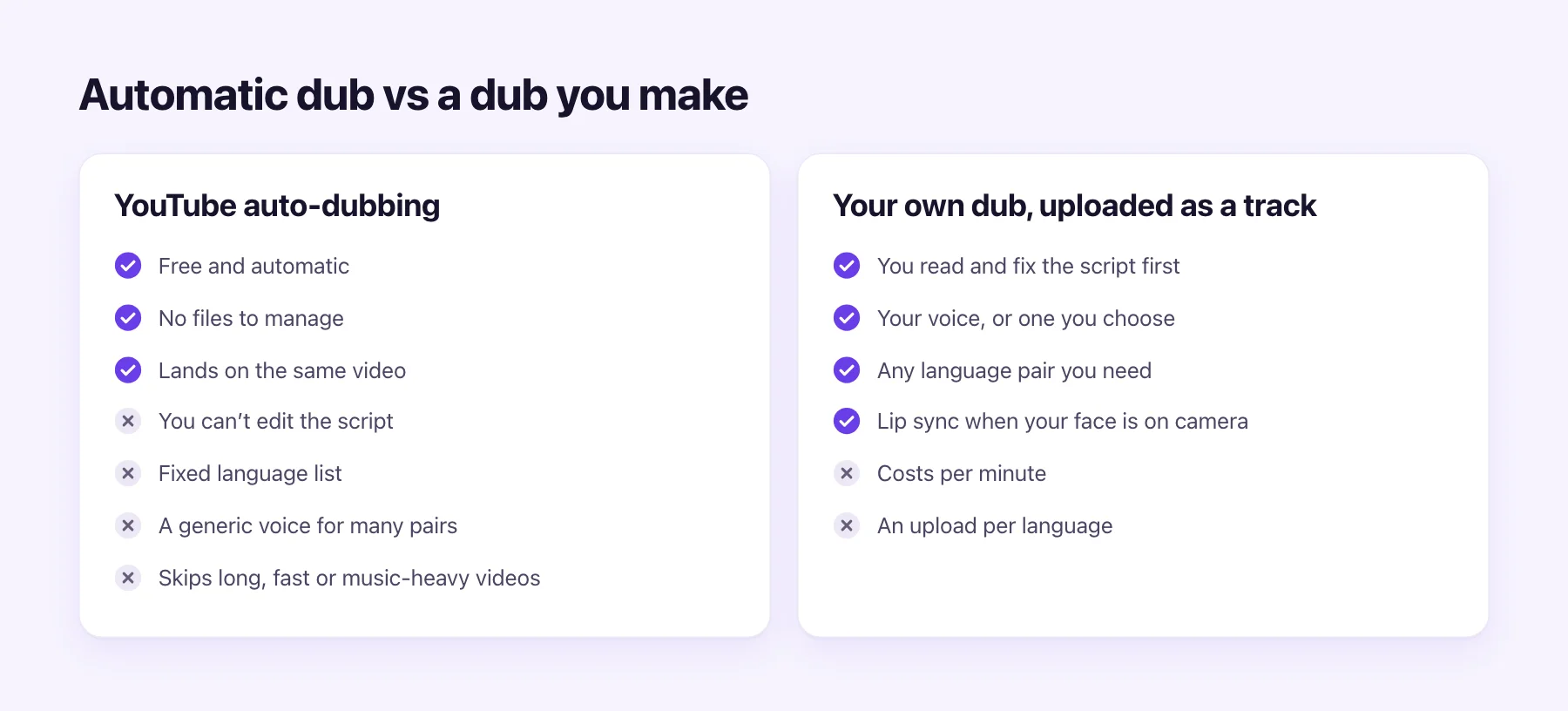
Make your own dub for the videos that earn the most: evergreen tutorials, product launches, anything sponsored, and anything where your voice is the brand. The workflow is short.
Upload the video to the YouTube video translator, pick the language, and you'll see the translated script line by line before any audio is made. Fix names and terms there, and add the words you never want translated to the glossary.
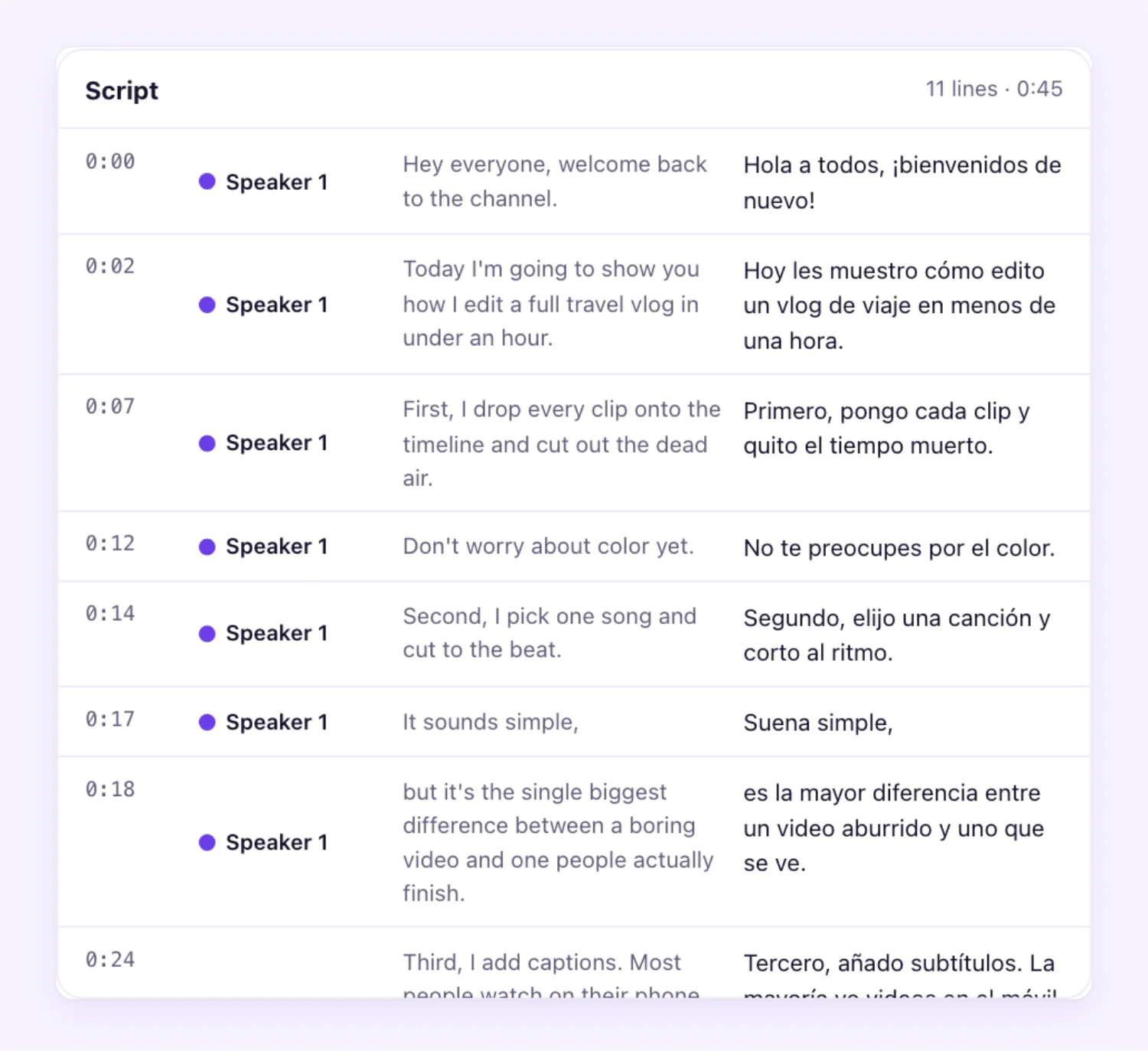
The dub is voiced in a voice learned from the speaker in your video by default, so it sounds like you speaking the new language. You can choose a library voice instead at no extra cost. For talking-head videos, lip sync moves the mouth to match the new words.
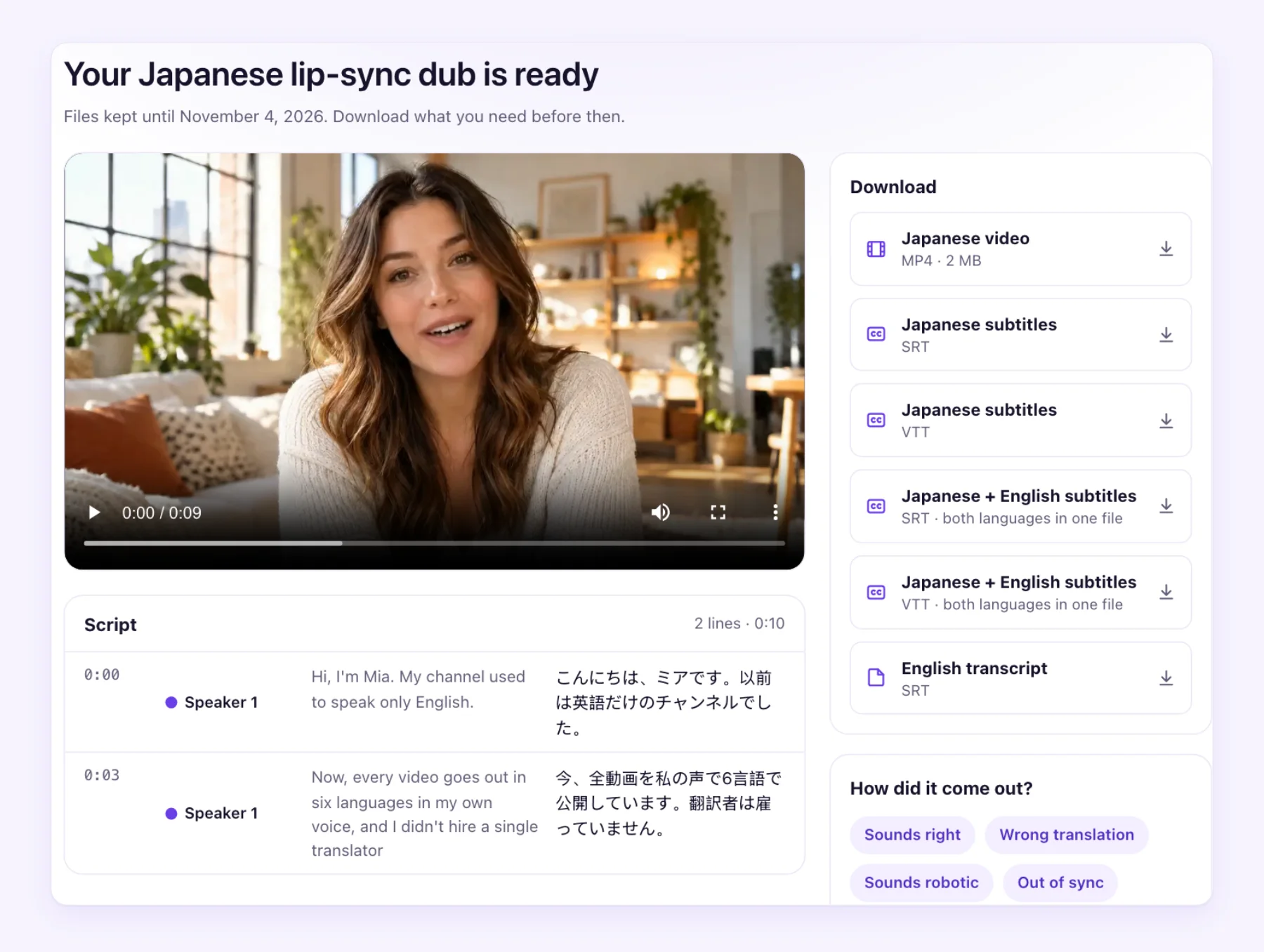
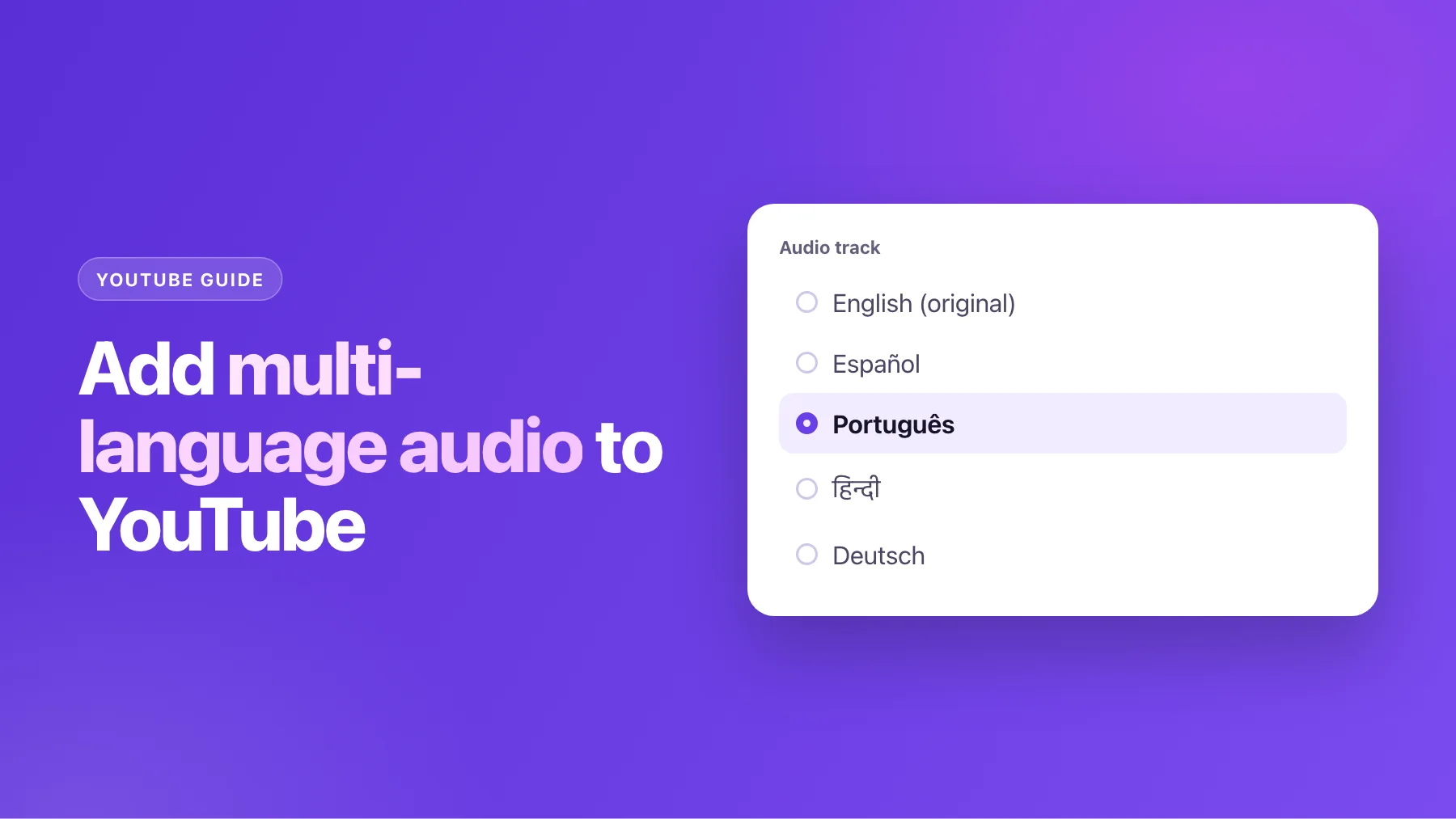
When it's done, download the audio-only dub (the music and sound effects stay in), then upload it in YouTube Studio under Languages → Add language → Dub. Delete YouTube's automatic dub in that language first if there is one. Our guide to multi-language audio tracks walks through the upload.
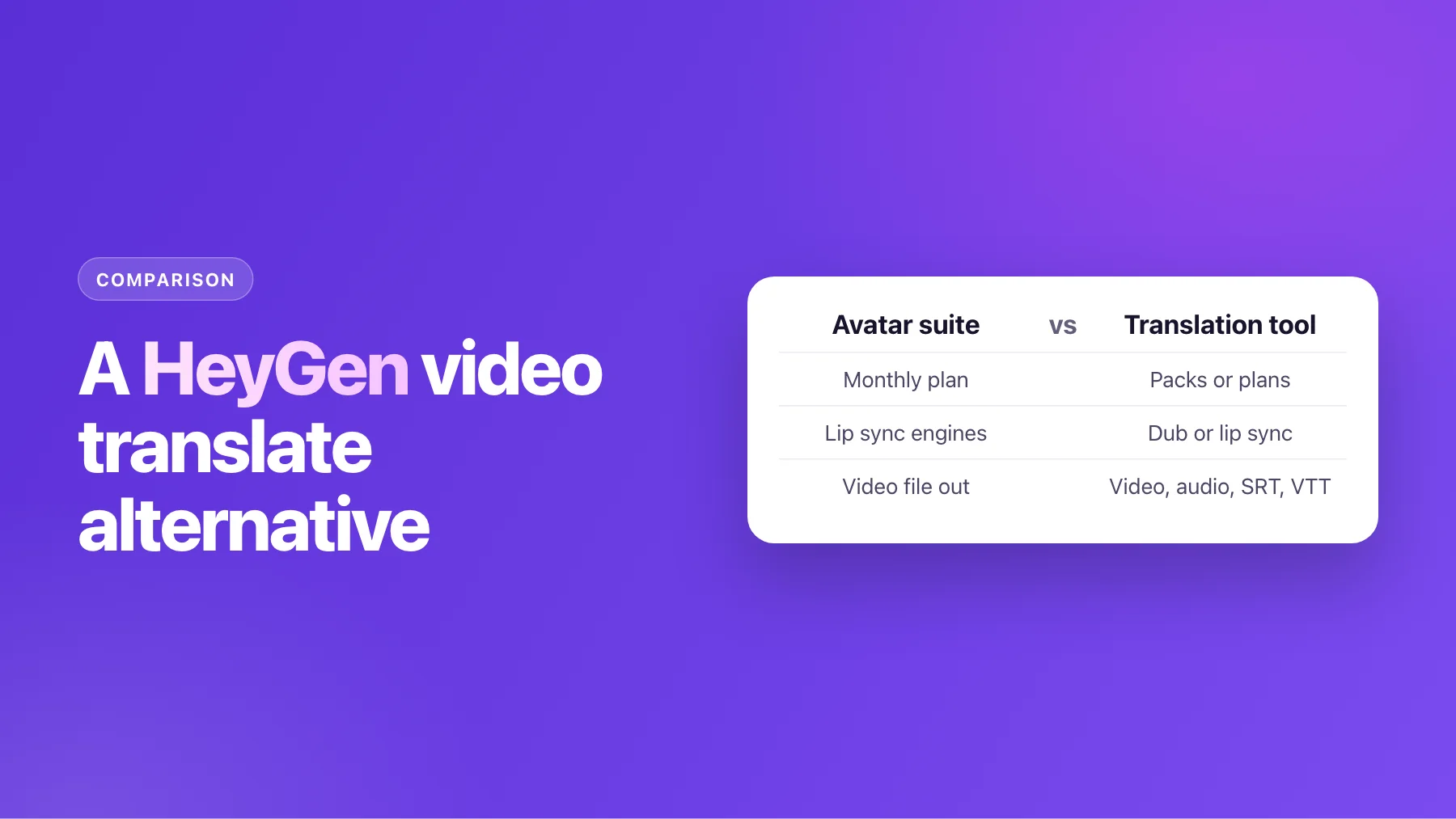
| YouTube auto-dubbing | Your own dub with AI Video Dubbing | |
|---|---|---|
| Cost | Free | From $0.54 a minute; first 60 seconds free |
| Edit the script first | No | Yes, line by line, with a glossary |
| Voice | Synthetic; expressive for some pairs | Learned from your voice, or one you pick |
| Languages | Fixed pairs | 65+ dubbed, 70+ subtitled |
| Lip sync | Experimental, select channels | Yes, from $1.78 a minute |
| Files you keep | None | MP4, audio-only dub, SRT and VTT subtitles |
A sensible mix
You don't have to pick one. Plenty of channels leave automatic dubbing on (or set to publish manually) for the back catalogue, and make their own dubs for the handful of videos that bring in most of their views. Start with one language that already shows up in your audience report, dub your top three videos into it, and compare their watch time from that country with the automatic dubs.
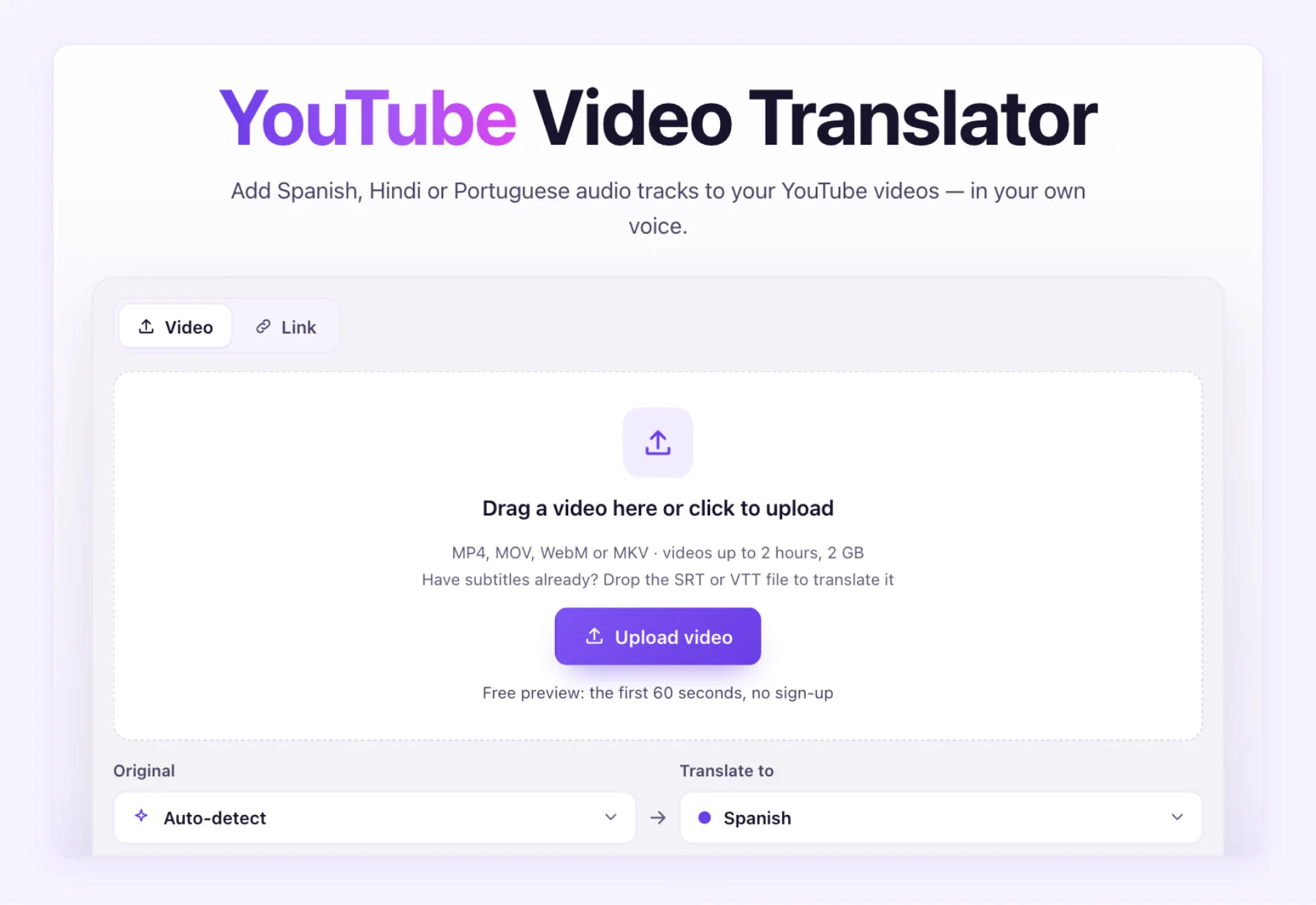
If you want to hear how one of your videos sounds in your own voice before deciding, the first 60 seconds on the YouTube video translator are free, with no sign-up.