How to Add Multi-Language Audio Tracks to a YouTube Video
Give one YouTube video a dub in several languages, with a language menu in the player. What you need, the exact Studio steps, and how to make the audio file.
On this page
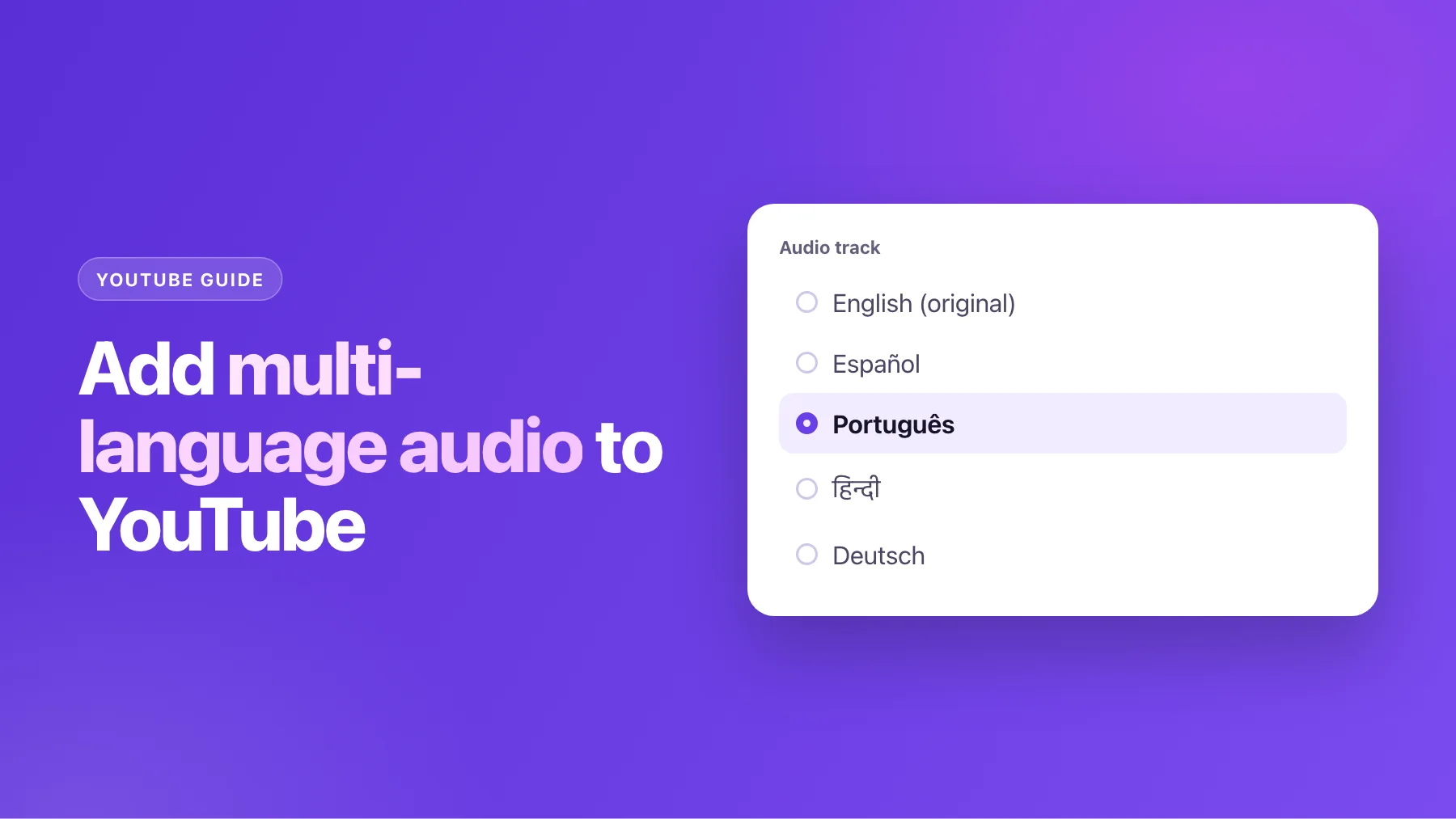
For years, reaching viewers in another language meant a second channel or a second upload: "My Video (Spanish version)", with its own views, its own comments and its own fight with the algorithm. Multi-language audio fixes that. You attach a dubbed audio track to the original video, and YouTube plays the one that matches each viewer's language. Everyone watches the same video, and every view counts in one place.
This guide covers what you need, the exact steps in YouTube Studio (from YouTube's help pages, read in November 2026), how to make the audio file, and what else to translate so people actually find the dub.
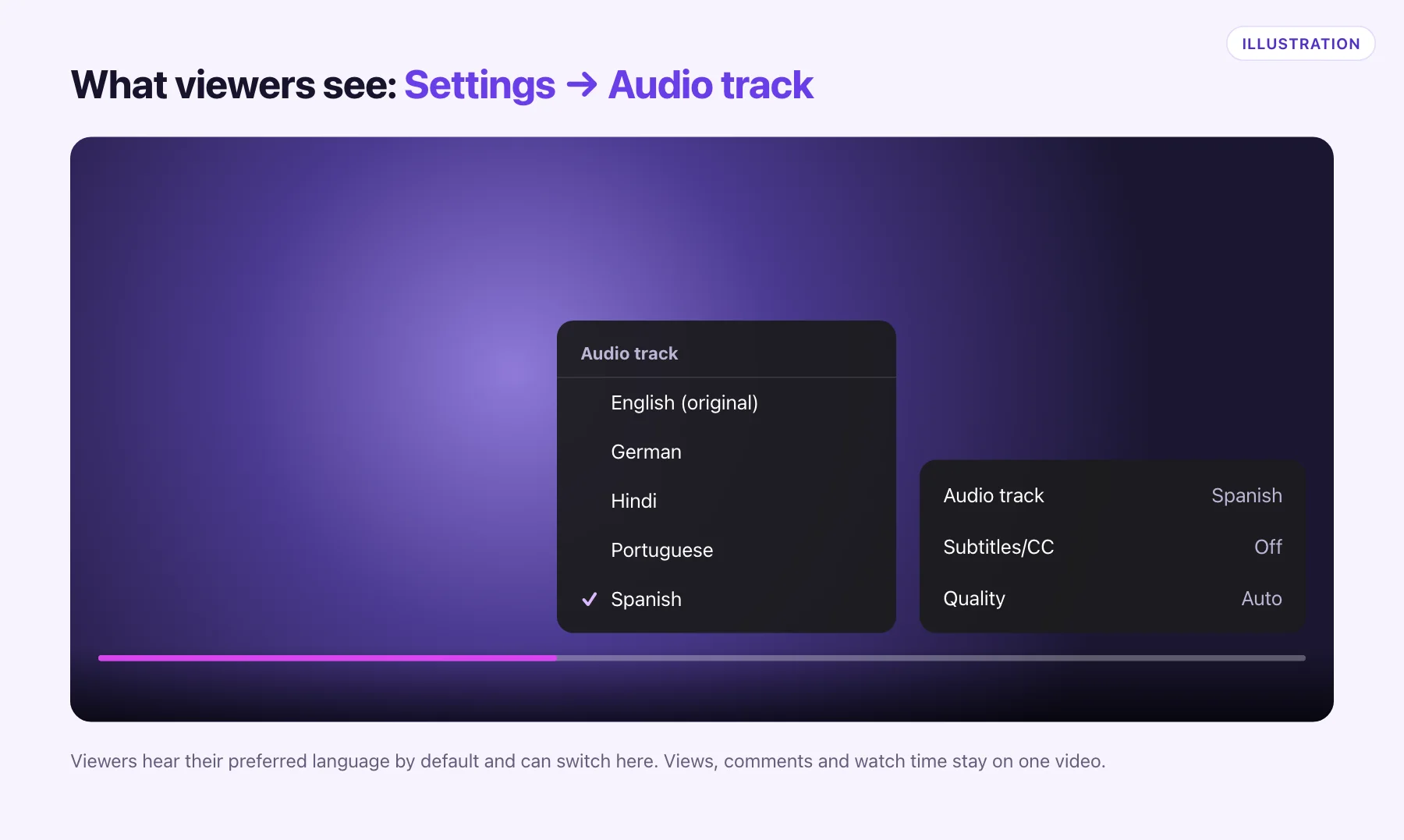
How multi-language audio works for viewers
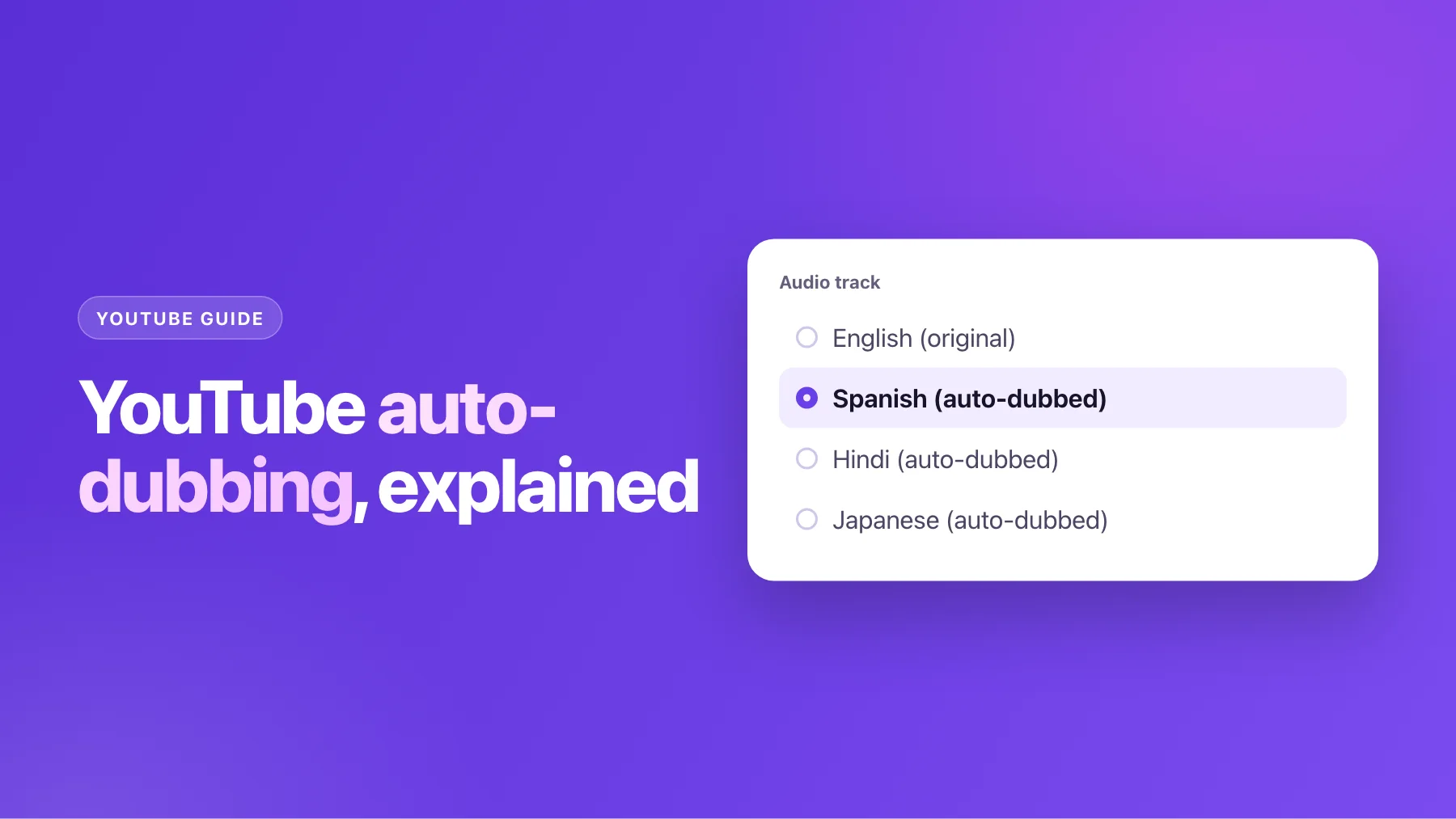
When a video has several audio tracks, YouTube plays the viewer's preferred language by default. Anyone can switch in the player: open Settings, then Audio track, and pick a language. The picture, the comments and the like count are the same for everyone.
For you, that means a dub doesn't start from zero. It inherits the video's watch history and ranking, and its viewers add to the same totals. It also works on Shorts, not only long-form videos.
What you need before you start
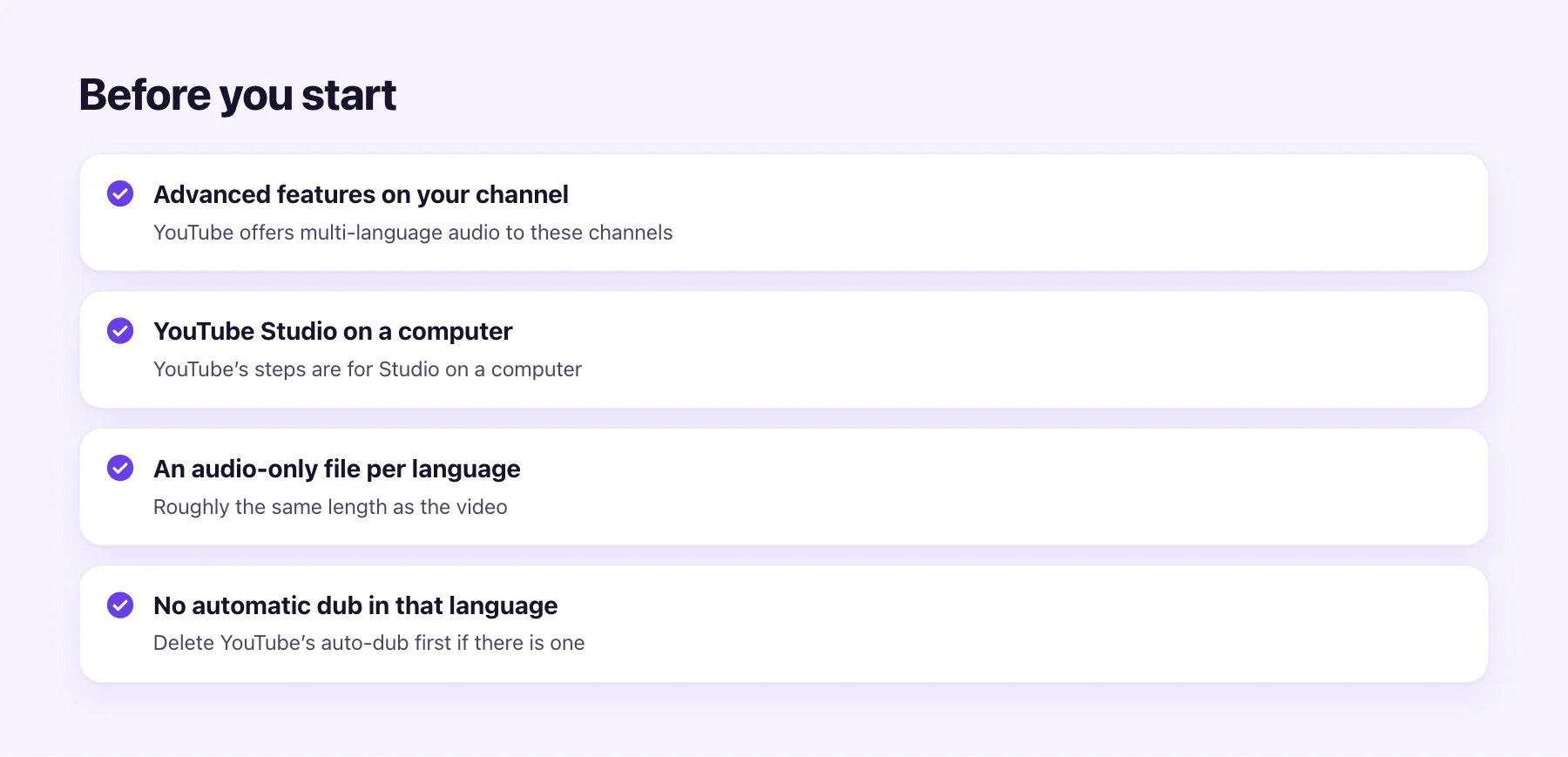
- Advanced features on your channel. YouTube offers multi-language audio to creators who have them.
- YouTube Studio on a computer. YouTube's steps are written for the desktop version.
- One audio-only file per language, roughly the same length as the video. YouTube's help page doesn't list the formats; a standard audio file such as MP3 is the usual choice.
- No automatic dub in that language. If YouTube already auto-dubbed the video, delete that dub first.
Step 1: Make the dubbed audio file
This is the part that takes work. A good dub keeps your music and sound effects, replaces only the speech, and matches the video's timing, so the track lines up when YouTube plays it.
Here's how to make one with AI Video Dubbing:
- Upload the video to AI dubbing. Use your editor's export if you have it; MP4, MOV, WebM and MKV up to 2 GB all work. You can trim it first if you only need part of it.
- Pick the languages. Leave the original on Auto-detect and choose where you want to go. A free account covers 1 language for a video up to 1 minute; packs and plans cover more.
- Read the script. You see the transcript and translation line by line before any audio is made. Fix names, product terms and numbers, and add channel-specific words to the glossary.
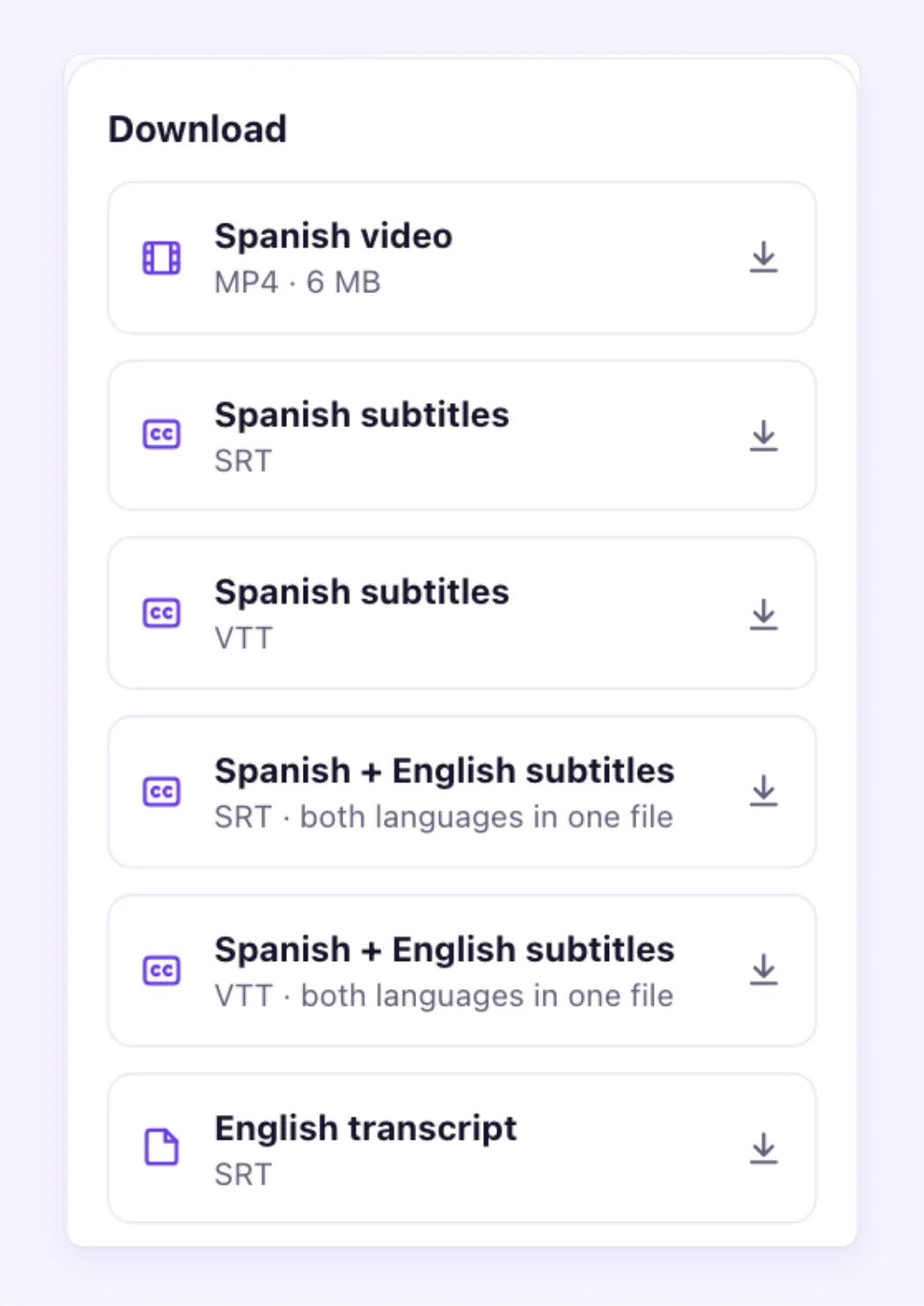
- Download the audio-only dub. It has the new speech mixed over your original music and effects, at the same length as the video.
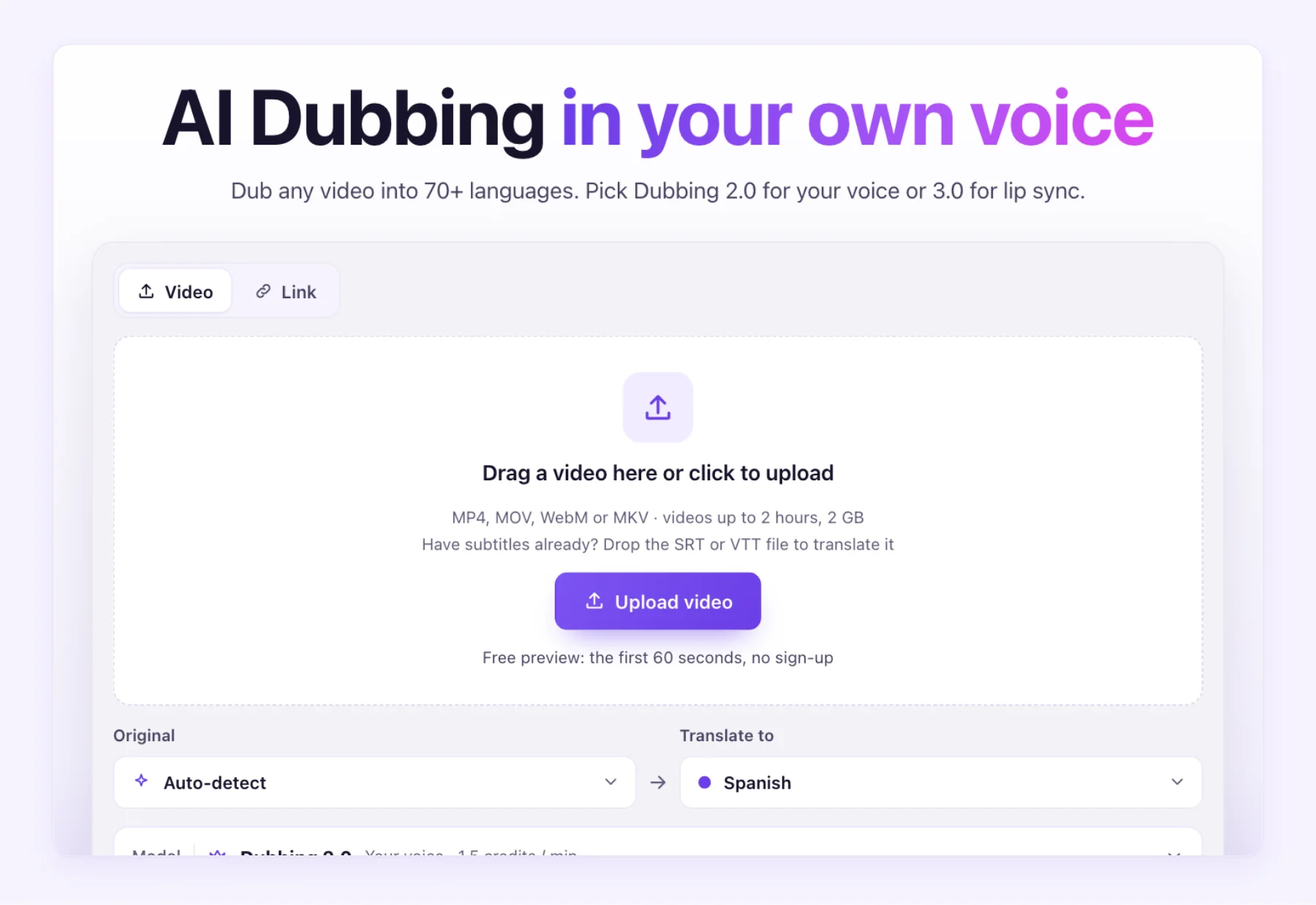
The voice is learned from the speaker in your video by default, so the Spanish track sounds like you speaking Spanish. You can pick a library voice instead at no extra cost.
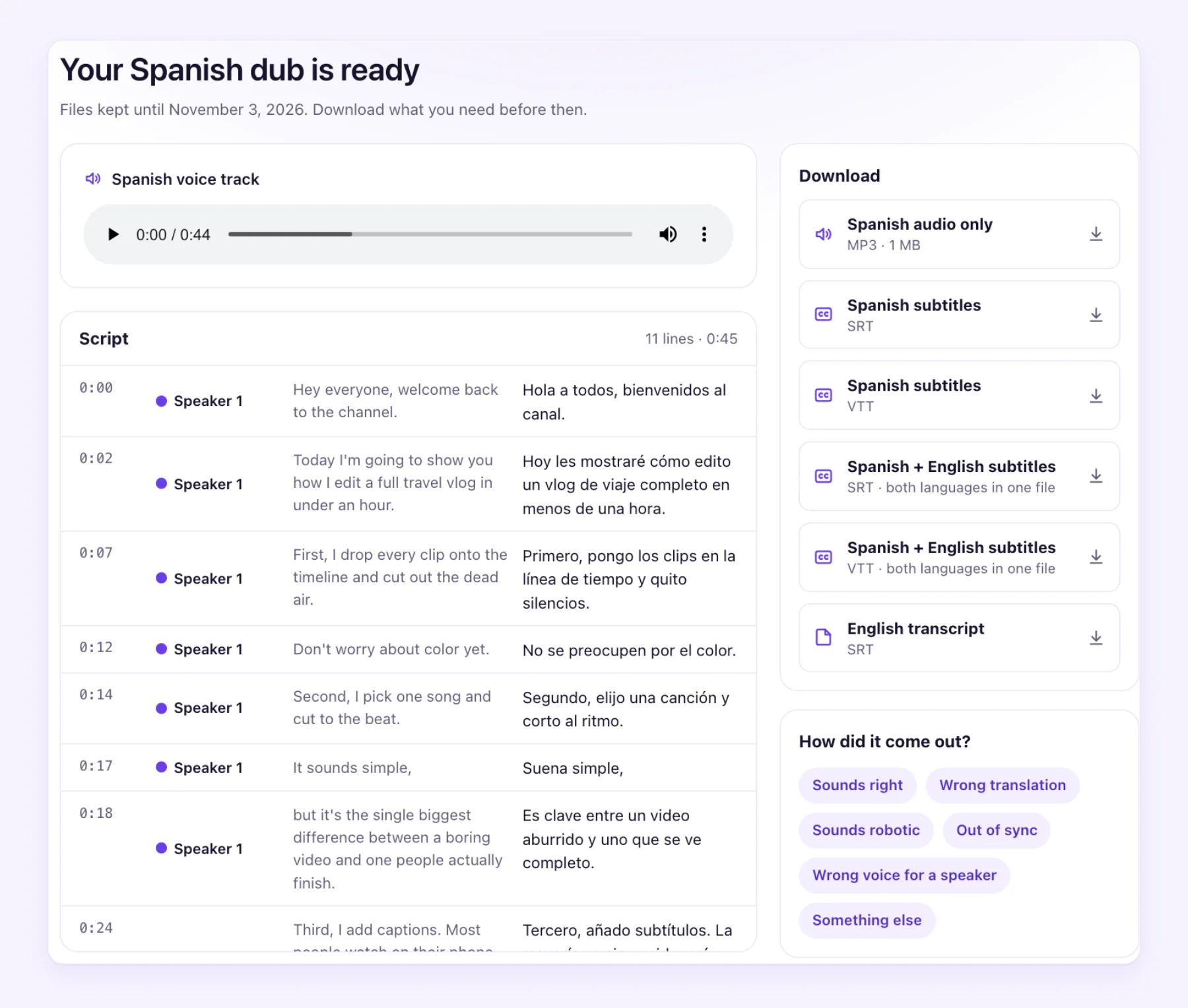
Download the dub as an audio-only file. That's the file YouTube asks for, and it keeps your original music and sound effects under the new voice. The same job also gives you subtitles, if you want a caption track as well.
Step 2: Upload the track in YouTube Studio
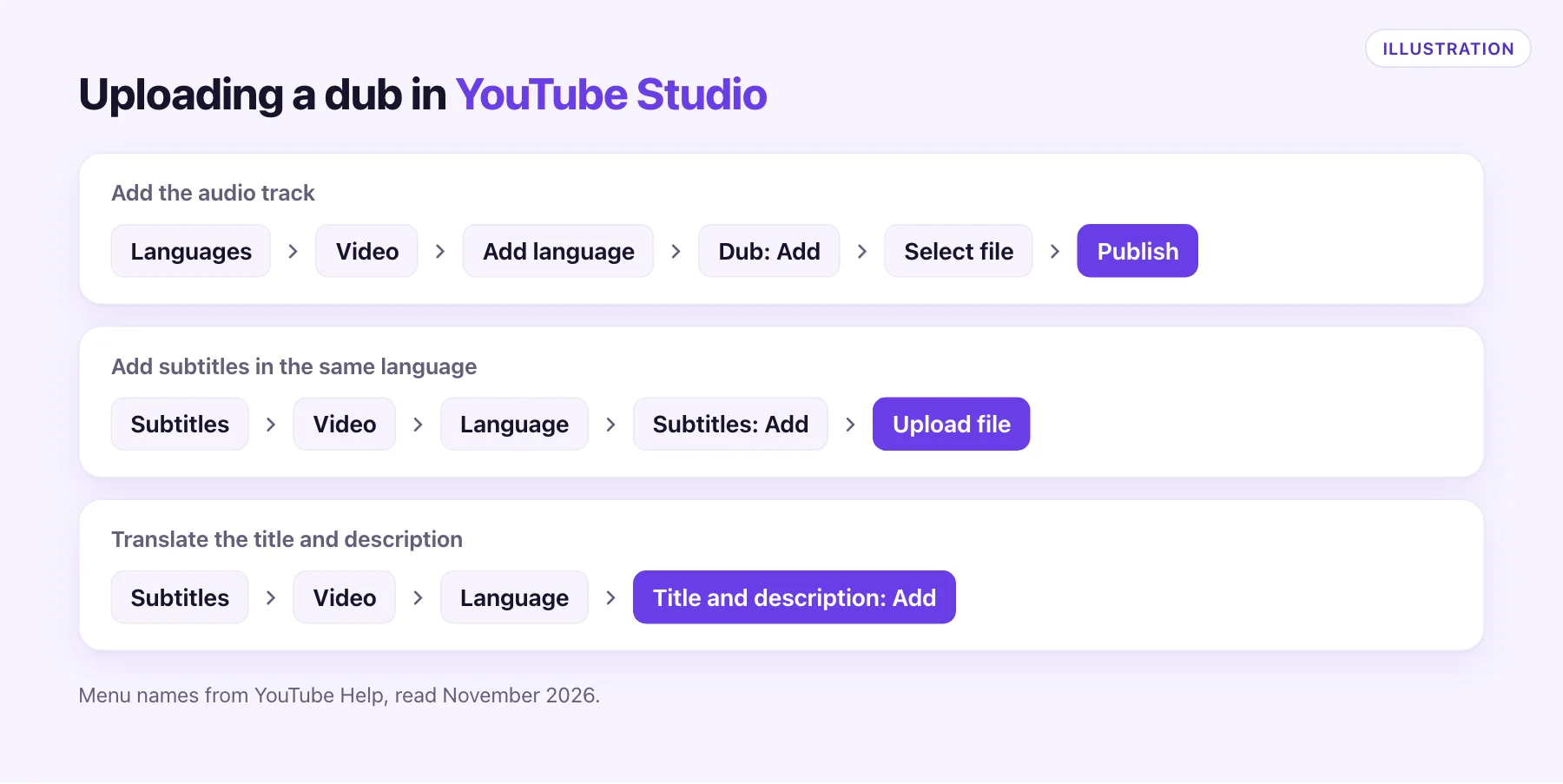
- Open YouTube Studio on a computer and choose Languages in the left menu.
- Pick the video.
- Choose Add language and select the language of your dub.
- Next to Dub, choose Add, then Select file and pick your audio file.
- Choose Publish.
Repeat for each language. If the Dub option is missing, either the channel doesn't have Advanced features yet or there's an automatic dub in that language to delete first.
Step 3: Translate the text around the video
A dub nobody finds doesn't help. YouTube's help page notes that translated titles and descriptions make videos findable in those languages, so do these in the same sitting:
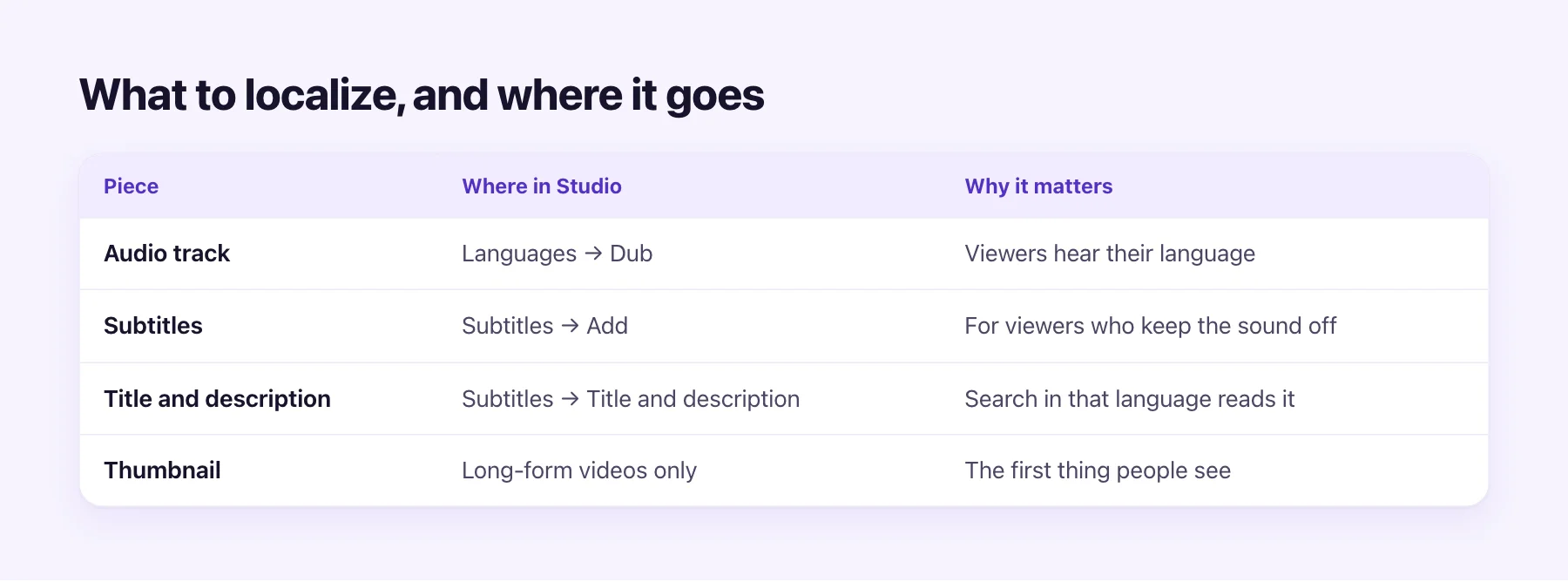
| Piece | Where in Studio | Why it matters |
|---|---|---|
| Audio track | Languages → Dub | Viewers hear their language |
| Subtitles | Subtitles → Add → Upload file | For viewers who keep the sound off |
| Title and description | Subtitles → Title and description → Add | What search in that language reads |
| Thumbnail | Localized thumbnails (long-form only) | The first thing people see in results |
AI Video Dubbing gives you subtitles in SRT and VTT alongside the dub, plus a bilingual file with both languages, so the subtitle track takes one more upload. YouTube accepts both formats. Translate the title and description with the same care as the script: keep the words people search for in that language, not a literal rendering of yours.
The whole workflow on one page
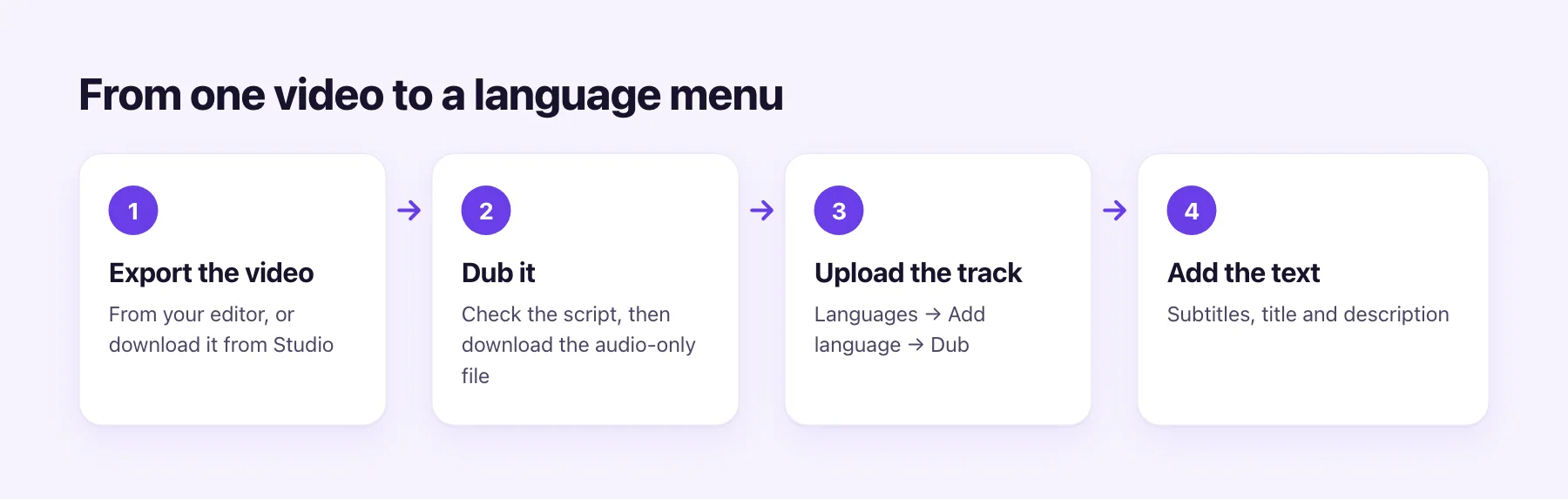
Export, dub, upload, add the text. Once you've done it for one video, the next ones take about as long as it takes to read the script.
Which videos and languages to start with
You don't need to dub your whole channel. Open your audience report in YouTube Studio and look at where your viewers already come from, and which languages they speak. The best first language is usually one with steady views and subtitles turned on: people who are already making the effort.
Then pick videos that stay relevant for a long time: tutorials, explainers and reviews of products people keep buying. News, reactions and trends lose value before a dub can pay off.
Here's what that costs with AI Video Dubbing at the lowest per-minute price:
| Example | Dub minutes | Cost at $0.54 a minute |
|---|---|---|
| One 10-minute tutorial into 1 language | 10 | About $5.35 |
| Your top three 10-minute videos into 1 language | 30 | About $16.05 |
| One 10-minute video into 3 languages | 30 | About $16.05 |
| One hour of videos into 1 language | 60 | About $32.11 |
Pack and plan prices differ a little; the pricing page has the details. The first 60 seconds of any video are free, so you can hear your voice in the new language before spending anything.
Common problems
- The Dub option isn't there. Check Advanced features, and delete any automatic dub in that language.
- The track drifts out of sync. The file has to match the video's length. Dub the exact export you uploaded, not an earlier cut.
- The music is gone in the dub. You've uploaded speech only. Use a dub that mixes the new voice over the original background.
- Nobody finds it. Add the translated title and description, and subtitles in the same language.
Ready to try it on one video? Upload it to AI dubbing and download the audio-only track when it's done.